Enhanced Pre-Annotation Performance, Security, and Stability in Generative AI Lab 8.3
Generative AI Lab 8.3 focuses on platform security, stability, and pre-annotation performance, introducing major infrastructure upgrades and more efficient processing workflows. This release improves pre-annotation throughput by up to 40% through concurrent pre-annotation and resolver processing, reducing the overall processing time for projects that use medical terminology resolution. Upgrades to Keycloak 24.0.5 and Apache Airflow 3.3.0 address known security vulnerabilities while strengthening authentication, workflow orchestration, and platform reliability.
The release also introduces a redesigned Meta workspace, featuring a space-efficient table layout and a dedicated Terminology mode for managing medical codes and descriptions directly within annotation workflows.
Additional improvements include safeguards against premature submissions in multi-page NER and Visual NER tasks, automatic fit-to-screen viewing for DICOM images, and clearer Medical Terminology status indicators. Bug fixes address annotation workflows, project cloning and import, server deployment, and reviewer assignment.
Concurrent Pre-Annotation and Resolver Processing
What’s Improved
Generative AI Lab 8.3.0 introduces concurrent pre-annotation and resolver processing, reducing overall processing time by up to 40% in tested workflows. Previously, resolver processing could only begin after pre-annotation had been completed for all selected tasks. With the updated workflow, each task is sent for resolver processing as soon as its pre-annotation is complete, allowing both processes to run simultaneously. This eliminates unnecessary waiting between processing stages and significantly improves throughput for projects requiring both pre-annotation and medical terminology resolution.
Technical Details
- Concurrent Processing: Pre-annotation and resolver processing can now run simultaneously across selected tasks, eliminating the need to complete the entire pre-annotation batch before starting resolution.
- Task-Level Resolver Execution: Resolver requests are triggered independently as soon as individual tasks complete pre-annotation, allowing completed tasks to proceed immediately to the next processing stage.
- Optimized Processing Workflow: The updated workflow reduces idle time between processing stages and improves overall efficiency, particularly for projects with large numbers of tasks requiring entity resolution.
Result / Performance Comparison
Performance testing on a project containing 500 tasks demonstrated a significant reduction in overall processing time.
| Flow | Processing Time | Behaviour |
|---|---|---|
| Previous Flow | ~ 30 minutes | Resolver processing starts after all tasks are pre-annotated |
| Improved Flow | ~ 18 minutes | Resolver processing starts as each task completes pre-annotation |
Note:- The improved workflow reduced total processing time by approximately 12 minutes (40%) in the tested 500-task project. Actual performance improvements may vary depending on project size, pipeline configuration, and available system resource.
User Benefits
- Faster Pre-Annotation: Reduce overall processing time for projects requiring both pre-annotation and entity resolution.
- Improved Throughput: Process tasks more efficiently by running pre-annotation and resolver operations concurrently.
- Reduced Processing Delays: Eliminate unnecessary waiting between pre-annotation and resolution stages.
- Greater Efficiency for Large Projects: Improve processing performance for large annotation projects that require medical terminology resolution.
Example Use Case
A healthcare annotation team is processing 500 clinical documents using an NER pipeline with medical terminology resolution. Previously, the system completed pre-annotation for all 500 documents before initiating resolver processing. With the updated workflow, each document is sent for resolution immediately after its pre-annotation is complete, while the remaining documents continue through the pre-annotation pipeline. In the tested 500-task project, this concurrent approach reduced total processing time from approximately 30 minutes to 18 minutes, allowing the team to access the processed annotations sooner and proceed with manual review more efficiently.
Core Platform Upgrades and CVE Remediation
What’s Improved
Core infrastructure upgrades strengthen platform security, address known vulnerabilities, and improve the stability and reliability of authentication and workflow orchestration. Keycloak has been upgraded to version 24.0.5 and Apache Airflow to version 3.3.0, providing a more secure and reliable foundation for enterprise deployments, background data processing, and pre-annotation workflows.
Technical Details
Keycloak 24.0.5 Upgrade
Keycloak has been upgraded from 20.0.3 to 24.0.5, addressing known security vulnerabilities and updating critical components of the authentication infrastructure. The upgrade includes:
- Security Vulnerability Remediation: Addresses known CVEs affecting Keycloak and its bundled dependencies, including Jackson, Netty, BouncyCastle, and PostgreSQL JDBC.
- Improved Runtime Stability: Updates the underlying Quarkus runtime to improve the stability and reliability of authentication services.
- Enhanced Identity and Session Management: Provides an updated authentication infrastructure to support consistent identity and session management across secure deployment environments.
Apache Airflow 3.3.0 Upgrade
Apache Airflow has been upgraded from 2.5.1 to 3.3.0, including updates to the underlying orchestration stack and Helm deployment. The upgrade includes:
- Improved Workflow Orchestration: Enhances DAG processing and task scheduling to support more efficient execution of background workflows.
- Improved Database Migration Reliability: Strengthens database migration processes to support more reliable platform upgrades and maintenance.
- Updated Pipeline Infrastructure: Provides an updated execution framework for background data processing, ML training, and pre-annotation workflows.
User Benefits
- Strengthened Platform Security: Addresses known vulnerabilities in core infrastructure components and their dependencies.
- More Reliable Authentication: Improves the stability of authentication services and identity management.
- Improved Workflow Reliability: Provides a more robust orchestration framework for background processing, ML training, and pre-annotation.
- Greater Deployment Stability: Updates critical infrastructure components to support more reliable enterprise deployments and platform maintenance.
Redesigned Meta Workspace in Right Panel – Space Efficiency, Table Layout & Terminology Mode
What’s Improved
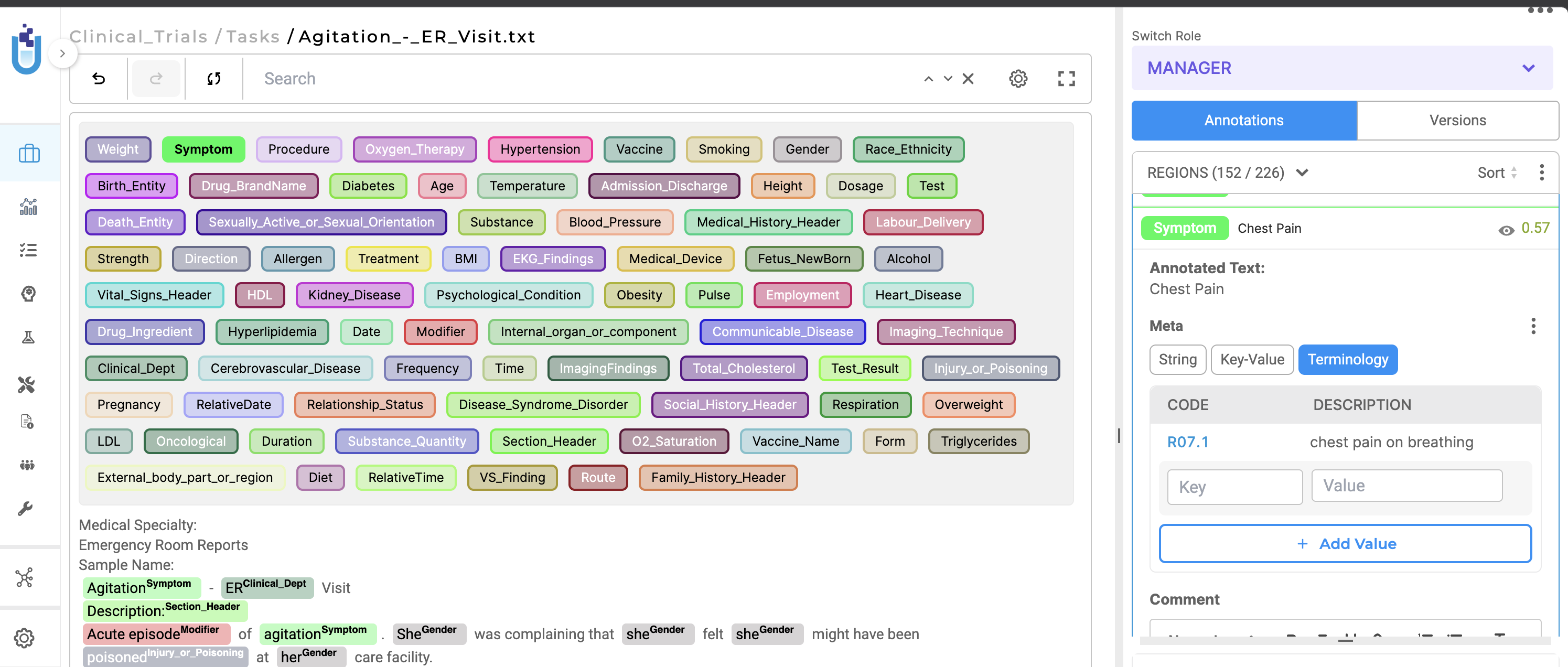
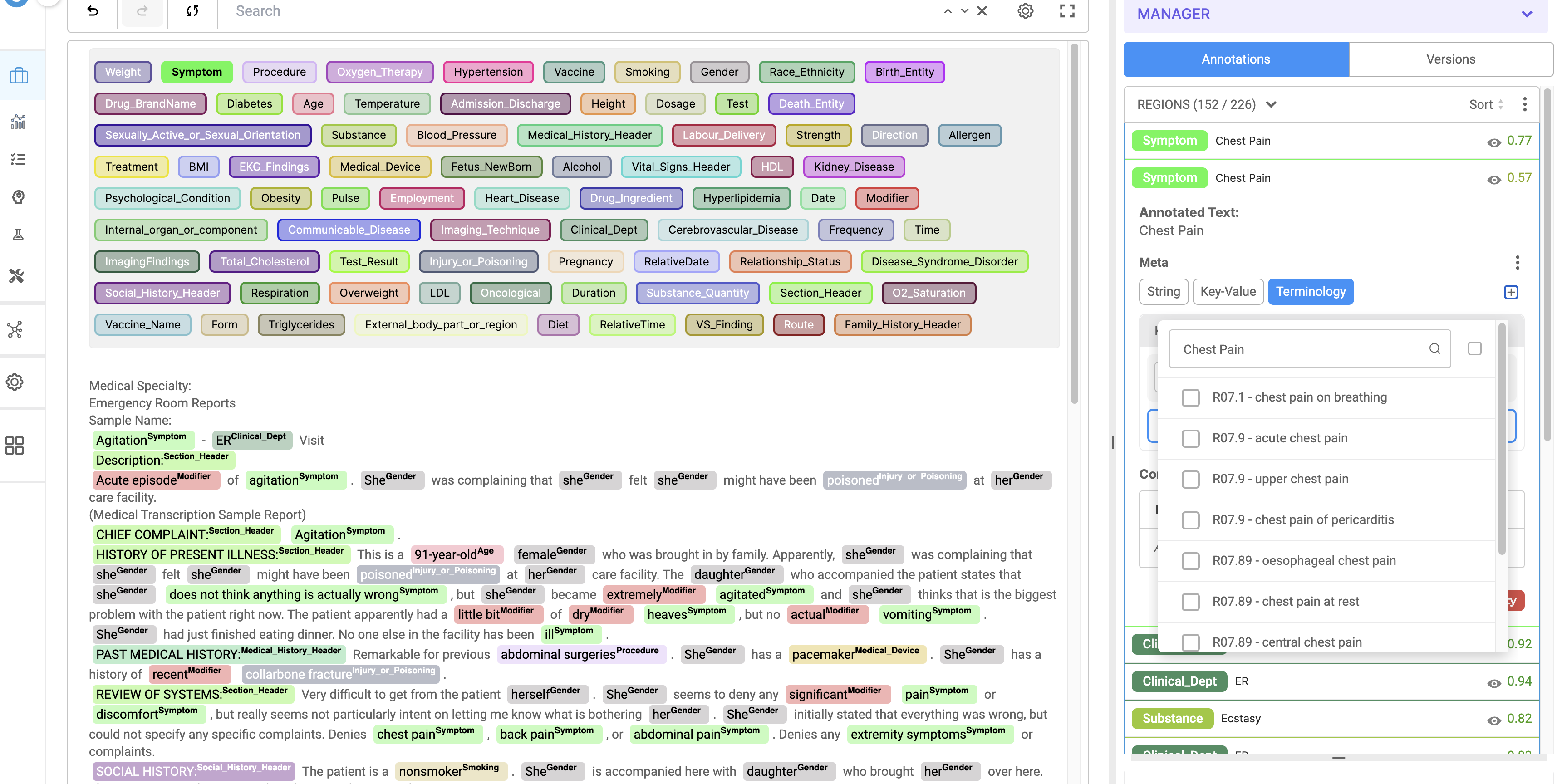
The redesigned Meta workspace features a more compact layout, improved metadata management, and a dedicated Terminology mode for reviewing and editing AI-generated entity resolution results. Previously, metadata was displayed in individual cards with permanently visible controls, occupying considerable space in the right panel and requiring extensive scrolling. Terminology codes and descriptions generated by entity resolution models were also displayed as ordinary metadata, without a dedicated structure for managing them as related pairs. The updated workspace offers three metadata modes: String, Key-Value, and Terminology. Compact tables replace the previous card-based layout, inline editing has been improved, and the redundant Annotated Text widget has been removed to make better use of the available space. The new Terminology mode provides a structured interface for managing medical and classification terminology, allowing annotators to review, search, edit, and delete associated codes and descriptions directly within the annotation workspace.
Technical Details
Dedicated Terminology Mode
The new Terminology mode is designed specifically for managing classification data generated by entity resolution models.
- Paired Code and Description Fields: Terminology entries are displayed in two aligned columns, keeping codes and their corresponding descriptions together.
- Searchable Terminology Lookup: The Add Terminology and edit actions open a dedicated lookup modal, allowing users to search for terminology codes and descriptions using free-text queries.
- Paired Entry Management: Deleting a terminology entry removes both its code and description, preserving the relationship between the two fields.
- Distinct Visual Presentation: Blue-tinted headers and highlighted code badges visually distinguish terminology entries from other metadata.
Compact Key-Value Table Layout
The previous card-based layout has been replaced with a compact, two-column table that provides a clearer overview of metadata.
- Aligned Key and Value Columns: Metadata is organized into consistent columns, making entries easier to scan and compare.
- Reduced Vertical Space: A shared header row replaces repeated field labels, allowing more metadata to be displayed without additional scrolling.
- Improved Metadata Organization: The structured table accommodates larger collections of metadata while maintaining a clean and consistent layout.

Enhanced Inline Editing UX
Metadata editing has also been improved to provide clearer visual feedback and reduce interface clutter.
- Distinct Focus Indicators: Active fields are highlighted with blue focus indicators for keys and yellow indicators for values.
- Automatically Resizing Fields: Value text areas dynamically adjust their height to accommodate longer content.
- Contextual Actions: Delete controls appear when hovering over individual rows, keeping the interface uncluttered when editing actions are not needed.
- Optimized Panel Space: Removing the redundant Annotated Text widget provides additional space for Labels, Comments, Relations, and metadata.
User Benefits
- Efficient Metadata Management: Review and manage more metadata within the available workspace, with less scrolling.
- Structured Terminology Review: Keep AI-generated terminology codes and descriptions together, simplifying the review and correction of entity resolution results.
- Faster Terminology Lookup: Search for and select terminology entries directly from the Meta workspace.
- Improved Editing Experience: Clear focus indicators, automatically resizing fields, and contextual controls make metadata editing more intuitive.
- Better Workspace Organization: A compact layout provides more room for other annotation tools in the right panel.
Example Use Case
An annotator is reviewing clinical entities extracted from patient documents and mapped to ICD-10 codes using an entity resolution model. In the redesigned Meta workspace, the annotator selects Terminology mode to review the generated codes and their corresponding descriptions in a structured table. If a code needs to be corrected, they open the searchable terminology lookup, find the appropriate entry, and update the code and description together. The annotator can then switch to Key-Value mode to add custom metadata, such as verification notes, without leaving the annotation workspace. The compact table layout keeps the information organized while preserving space for Labels, Comments, and Relations.
Page-Traversal Safeguards for Multi-Page NER and Visual NER Tasks
What’s Improved
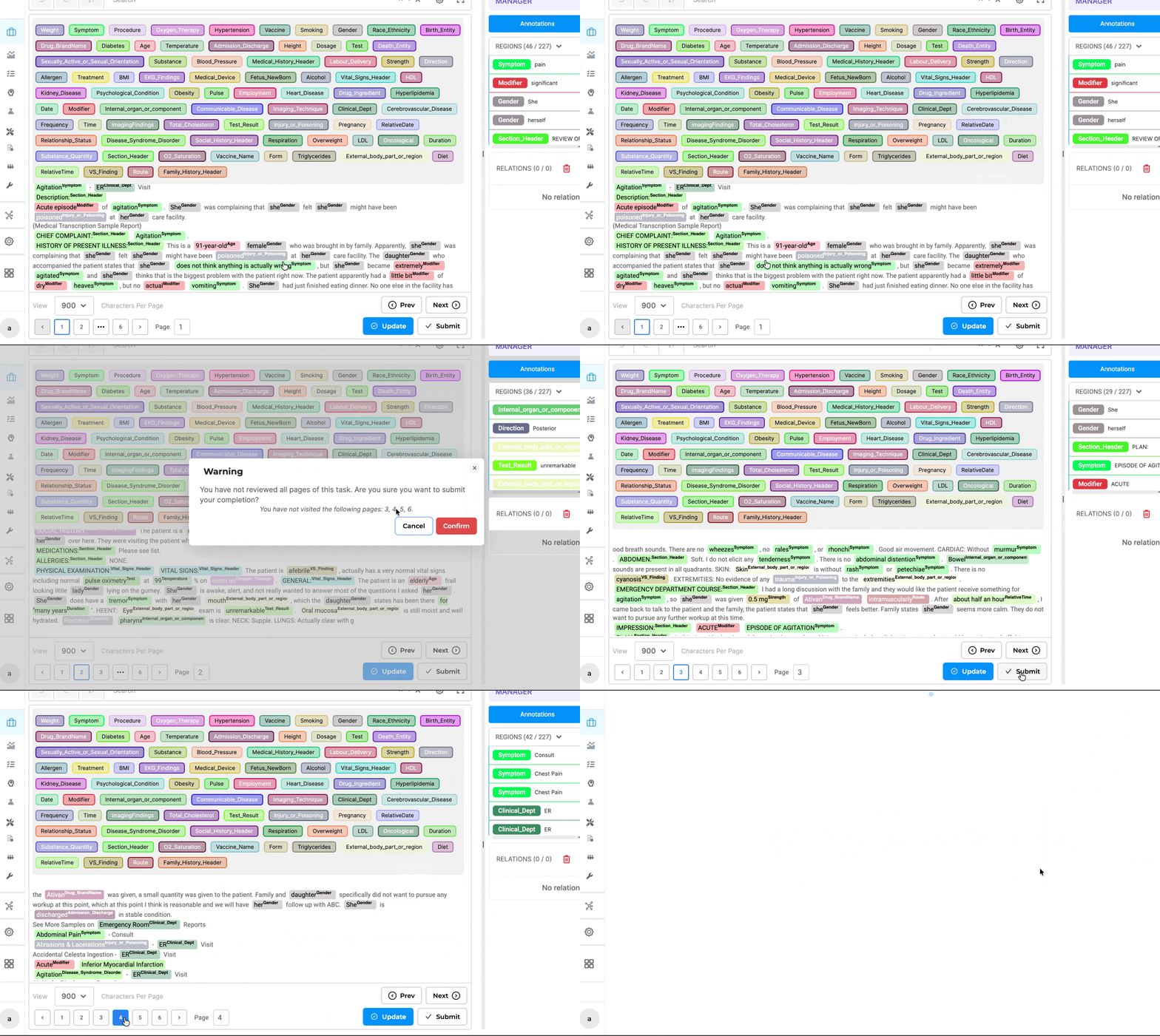
Multi-page NER and Visual NER tasks now include enhanced pagination controls and a pre-submission warning to help annotators avoid submitting documents before reviewing all their pages. Previously, annotators could submit a multi-page task without visiting every page, potentially leaving portions of the document unannotated and increasing the need for additional quality assurance. The updated interface provides clearer pagination indicators and tracks which pages have been visited during the labeling session. If an annotator attempts to submit a task with unvisited pages, a warning dialog appears, allowing them to return to the document or explicitly confirm submission. This keeps the introduction focused on the improvement itself and avoids repeating the release name throughout the documentation.
Warning for unreviewed pages in multi-page tasks
Technical Details
-
Enhanced Pagination Indicators: Improved page navigation controls clearly display the current page and total number of pages, making it easier to identify multi-page documents.
-
Page-Traversal Tracking: The annotation workspace tracks which pages have been visited during the active labeling session, identifying any pages that remain unvisited.
-
Pre-Submission Warning: If an annotator attempts to submit a task before visiting every page, a confirmation dialog alerts them to the unvisited pages. They can return to the document to continue reviewing or explicitly confirm submission.
-
NER and Visual NER Support: The safeguards are available for both multi-page text NER and Visual NER projects, providing consistent behavior across text and document-image annotation workflows.
User Benefits
- Reduced Risk of Incomplete Annotations: Helps prevent accidental submissions of documents containing unvisited pages.
- Improved Document Navigation: Clear pagination indicators make it easier to identify and navigate multi-page tasks.
- Better Annotation Quality: Encourages annotators to review every page before submitting their work.
- Reduced Review Overhead: Helps identify potentially incomplete tasks before they reach reviewers, reducing unnecessary rework.
Example Use Case
An annotator is working on a three-page clinical report in a Visual NER project. After annotating the first page, they accidentally click Submit without visiting the remaining pages. The system detects that pages two and three have not been visited and displays a warning dialog. The annotator chooses to return to the document, navigates through the remaining pages, completes the annotations, and submits the task. This safeguard helps prevent incomplete documents from entering the review workflow while still allowing annotators to proceed with submission when necessary.
Loading State and Action Control for Validate and Integrate
What’s Improved
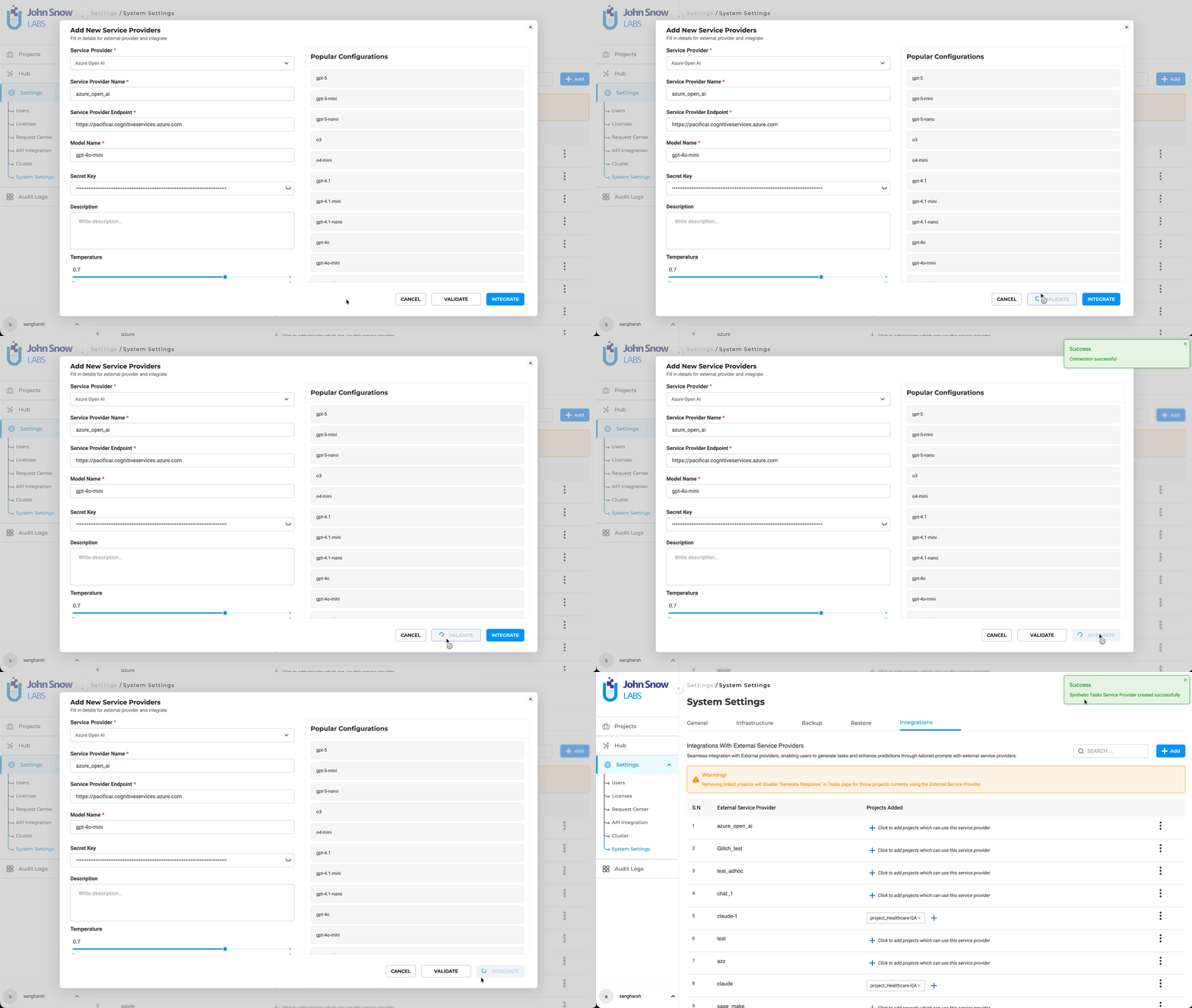
The Validate and Integrate actions in the LLM service provider configuration interface now include loading indicators and improved button-state management, providing clearer feedback while API requests are being processed. Previously, users could click these buttons multiple times while waiting for a response, potentially triggering duplicate requests. The updated interface displays a loading indicator and temporarily disables both actions while a request is in progress. Once the request completes, whether successfully or unsuccessfully, both buttons become available again.
Technical Details
- Loading Indicators: The Validate and Integrate buttons display a loading state while their respective API requests are being processed.
- Duplicate Request Prevention: Both actions are temporarily disabled whenever a validation or integration request is in progress, preventing repeated submissions.
- Automatic State Restoration: Both buttons are re-enabled when the request completes, regardless of whether it succeeds or fails.
User Benefits
- Clear Processing Feedback: Users can immediately see when a validation or integration request is being processed.
- Prevention of Duplicate Requests: Temporarily disabling both actions prevents accidental repeated submissions.
- Improved Configuration Experience: Consistent button states make LLM service provider configuration more intuitive and predictable.
Example Use Case
An admin configures a new LLM service provider and clicks Validate to verify the configuration. While the validation request is being processed, the Validate button displays a loading indicator, and both Validate and Integrate are temporarily disabled. Once validation completes, both buttons become available again, allowing the administrator to proceed with integrating the service provider.
Fit DICOM Images to Viewer Screen
What’s Improved
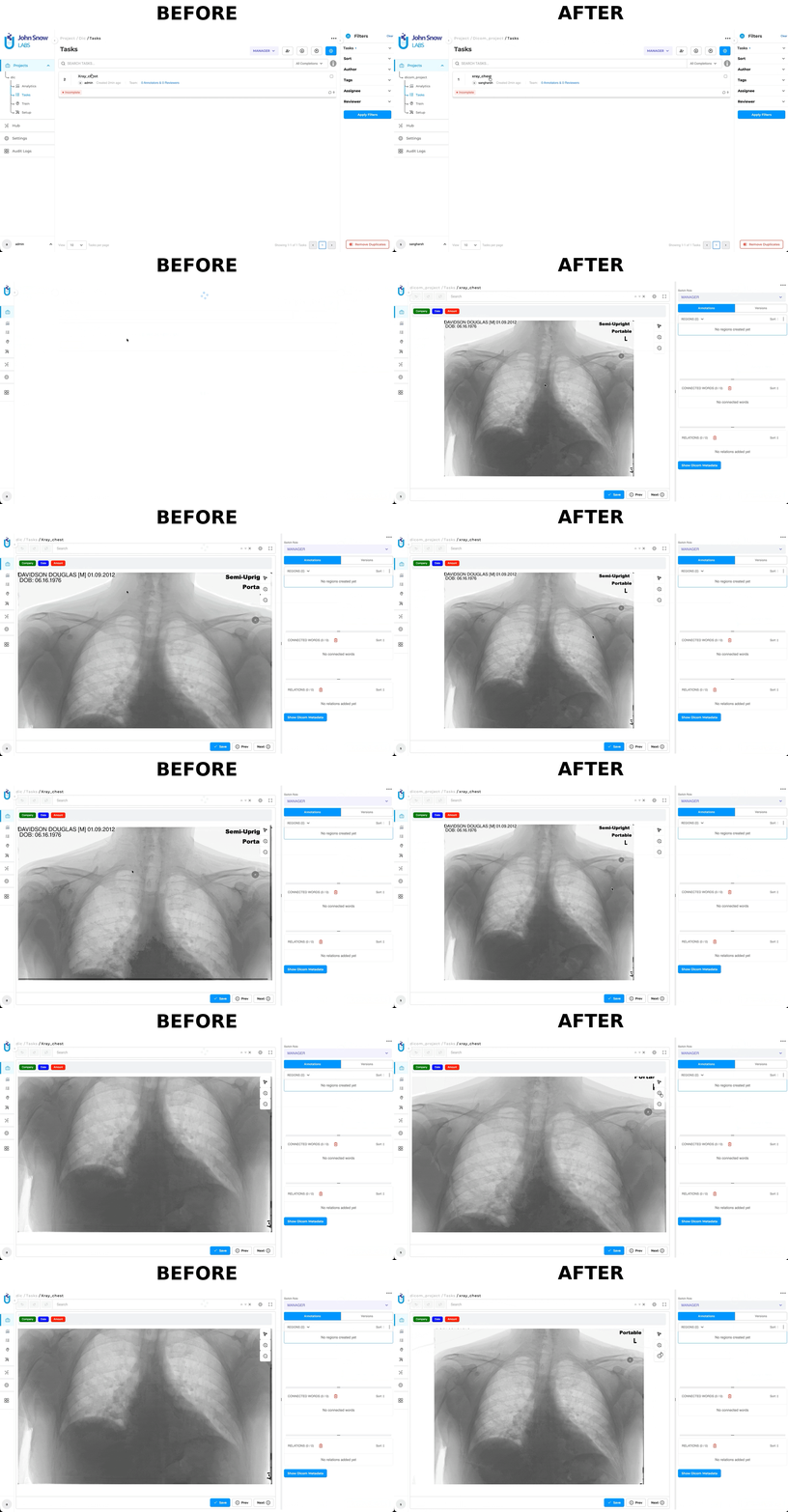
DICOM images are now automatically scaled to fit the available viewer area when opened, providing a complete view of the image without requiring manual adjustments. Previously, high-resolution DICOM images were displayed at their original resolution, potentially extending beyond the visible viewer area and requiring users to scroll or manually adjust the zoom level. With the updated viewing behavior, images are automatically resized to fit the viewer while preserving their original aspect ratio. Users can still zoom in or out to inspect specific areas of interest.
Technical Details
- Automatic Fit-to-Screen: DICOM images are scaled to fit the available viewer area when initially opened.
- Complete Image Visibility: The entire image is displayed without requiring horizontal or vertical scrolling.
- Aspect Ratio Preservation: Image proportions are maintained during automatic scaling to prevent distortion.
- Flexible Zoom Controls: Users can zoom in or out after the image has been fitted to the viewer.
- Responsive Display: Automatic scaling adapts to different screen sizes and viewer dimensions.
User Benefits
- Improved Initial Viewing: See the entire DICOM image immediately upon opening a task.
- Reduced Manual Adjustments: Eliminate unnecessary scrolling and initial zoom adjustments when working with high-resolution images.
- Flexible Image Inspection: Zoom in to examine specific image regions while retaining control over the viewing experience.
- Consistent Viewing Experience: Benefit from automatic image scaling across different screen sizes and resolutions.
Example Use Case
An annotator opens a task containing a high-resolution DICOM image in a Visual NER project. Instead of displaying the image at its original resolution and requiring manual adjustments, the viewer automatically scales it to fit the available space. The annotator can immediately review the complete image and use the zoom controls to examine specific regions in greater detail.
Updated Medical Terminology Resolution Status Indicators
What’s Improved
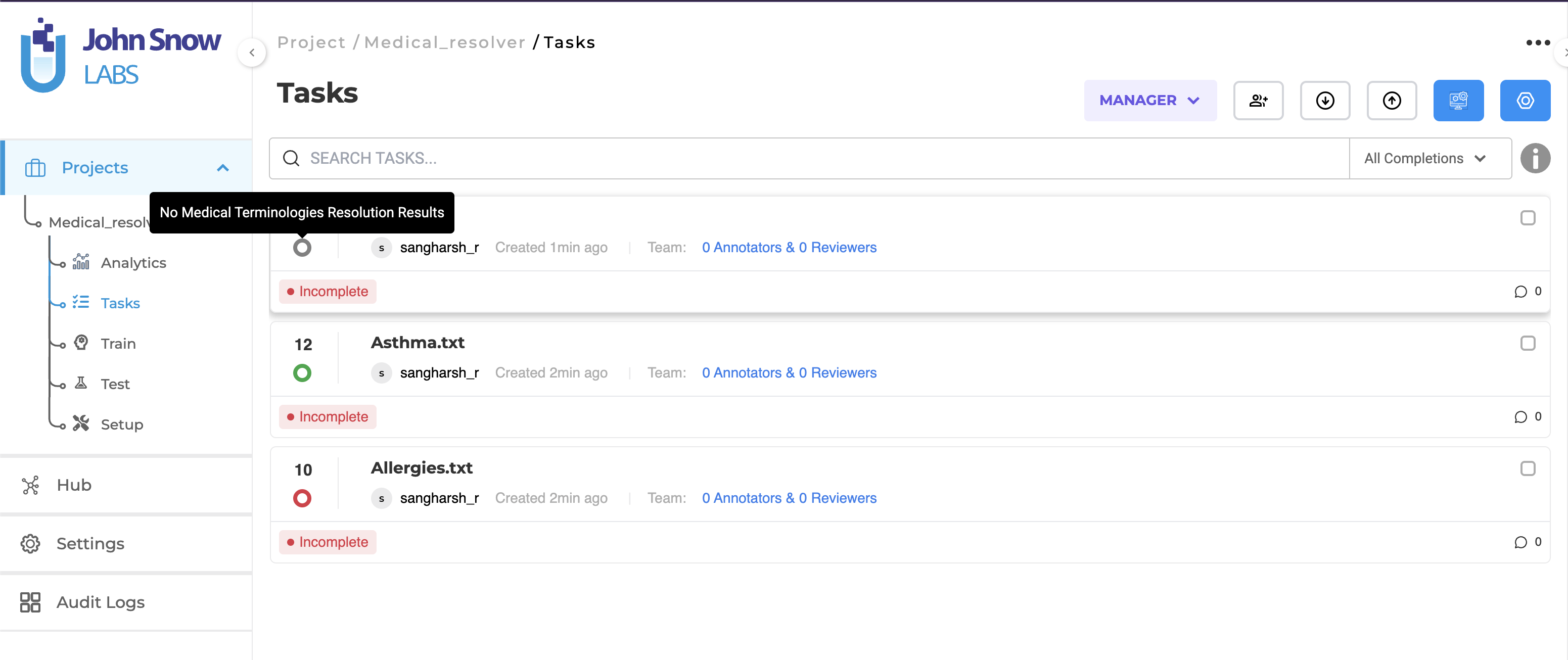
The Medical Terminology Resolution status indicators have been updated to provide clearer visibility into pre-annotation results and Medical Terminology Server availability. Previously, unsuccessful terminology resolution was indicated in red, without clearly distinguishing between pre-annotation failures and terminology resolution issues. This could cause confusion about whether annotations had been generated successfully. The updated indicators use distinct visual states to help users identify whether pre-annotation and medical terminology resolution have completed successfully or whether further attention is required.
Technical Details
The updated status indicators use three colors to represent different processing states:
- Grey — No Annotations: No annotation results are available for the task.
- Green — Successful Processing: Annotations have been successfully generated using both the Pre-Annotation Server and the Medical Terminology Server.
- Red — Processing or Server Issue: Pre-annotation has failed, or the Medical Terminology Server is unavailable or has not been deployed. When the Medical Terminology Server is unavailable, pre-annotation can still generate results without terminology resolution, allowing users to continue working with the available annotations.
User Benefits
- Clearer Processing Status: Quickly identify the current state of pre-annotation and medical terminology resolution.
- Improved Troubleshooting: Recognize processing failures or unavailable terminology services directly from the Tasks page.
- Better Visibility into Available Results: Understand when pre-annotation results remain available even if medical terminology resolution cannot be completed.
- Reduced Workflow Disruption: Continue reviewing available annotations when terminology resolution is unavailable.
Bug Fixes
Visual NER, DICOM & PDF Projects
-
Error When Adding Relations in the Image View of Side-by-Side Projects Attempting to add a relation in the image view of a Side-by-Side project could redirect users to a “Something Went Wrong” error page. The PDF/Image view is now read-only for annotation actions, preventing unsupported interactions with labels and relations.
-
Incorrect Project Type Highlighting and Template View Not Loading on Reselection
Selecting certain project types, including PDF, Image, and LLM Comparison, could incorrectly highlight the Text/HTML project type. Additionally, templates sometimes failed to load when users reselected the currently selected project type. Project type highlighting and template loading now behave correctly during selection and reselection.
-
PDF Documents Missing After Cloning or Importing Side-by-Side Projects
PDF documents could become unavailable after cloning a Side-by-Side project or exporting and re-importing it. PDF documents are now preserved and displayed correctly throughout project cloning and export/import workflows.
-
Missing PDF Text Extraction Option
The Text Extraction from PDFs import option was unavailable for PDF with Text Annotation projects. This option has been restored, allowing users to extract text from PDF documents during task import.
-
Move Button Not Working in Visual Projects
The Move button could become unresponsive in Visual projects, preventing users from repositioning images during annotation. Image movement functionality has been restored.
-
Incomplete Visual NER Tasks Inaccessible After Project Cloning or Cloud Import
Incomplete Visual NER tasks could not be opened after cloning a project or importing an exported project through cloud storage, particularly when the project also contained submitted tasks. Incomplete tasks are now accessible, allowing annotators to resume their work.
-
Incorrect Import Status Displayed for DICOM Imports
Successfully imported DICOM files could be incorrectly reported as failed, despite successful processing. Import status reporting has been corrected to accurately reflect successful DICOM imports and display valid previews.
-
DICOM Images Not Loading After Visual NER Project Cloning or Import
DICOM images could fail to load in Visual NER projects after cloning or importing a project, displaying a “Cannot load Image” error. DICOM images are now correctly loaded and displayed in cloned and imported projects.
-
Internal Server Error When Importing from Empty Azure Paths
Importing tasks from an Azure storage path containing no files could trigger an Internal Server Error in Visual projects. The import workflow now handles empty Azure paths without encountering a server error.
Pre-Annotation, OCR & Terminology Resolution
-
Incorrect Orphaned Status During Pre-Annotation Server Deployment
Pre-Annotation Servers could be temporarily displayed as Orphaned on the Cluster page while their containers were still being created. Deployment status reporting has been corrected to accurately reflect the server startup process without prematurely marking servers as orphaned.
-
OCR Scope and Credits Registration in Universal License Deployments
OCR scope and credits registration has been aligned with the expected workflow for Universal License deployments. Registration now occurs when an OCR task is imported rather than during OCR server deployment.
-
Unauthorized Resolver Deployment API Requests for Annotators
Annotator users could trigger unauthorized resolver deployment information requests, resulting in HTTP 403 responses. These requests are no longer initiated for users without the required permissions, eliminating unnecessary authorization errors.
-
Medical Terminology Server Restart When Adding Lookups
Adding a lookup annotation in Kubernetes deployments could cause the Medical Terminology Server to restart, resulting in an incorrect “Medical Terminology Not Deployed” message. The server now remains available during lookup operations, preventing interruptions to terminology resolution workflows.
Annotation Workflow, Review & Evaluation
-
Excessive Similarity in Synthetic Task Generation
Synthetic Task Generation could produce tasks with excessive similarity, limiting the diversity of generated datasets. Task generation has been improved to produce greater variation and reduce repetition among tasks generated using the same prompt.
-
Incorrect Label Selection Persistence in LLM Comparison and Blind Evaluation Projects
The label selected for one result could remain active when annotating subsequent results in LLM Comparison and Blind Evaluation projects. Label selection is now handled independently for each result, preventing unintended label carryover.
-
Automatic Reviewer Assignment When Opening the Reviewer Tab
Simply opening the Reviewer tab could automatically assign a reviewer to a task without explicit user action. Reviewer assignments now occur only when a user deliberately initiates the assignment.
Versions
- 8.3.2
- 8.3.0
- 8.2.8
- 8.2.6
- 8.2.5
- 8.2.1
- 8.2.0
- 8.1.3
- 8.1.2
- 8.1.1
- 8.1.0
- 8.0.1
- 8.0.0
- 7.8.2
- 7.8.1
- 7.8
- 7.7
- 7.6.0
- 7.5.1
- 7.5.0
- 7.4.0
- 7.3.1
- 7.3.0
- 7.2.2
- 7.2.1
- 7.2.0
- 7.1.0
- 7.0.1
- 7.0.0
- 6.11.3
- 6.11.2
- 6.11.1
- 6.11.0
- 6.10.1
- 6.10.0
- 6.9.1
- 6.9.0
- 6.8.1
- 6.8.0
- 6.7.2
- 6.7.0
- 6.6.0
- 6.5.1
- 6.5.0
- 6.4.1
- 6.4.0
- 6.3.2
- 6.3.0
- 6.2.1
- 6.2.0
- 6.1.2
- 6.1.1
- 6.1.0
- 6.0.2
- 6.0.0
- 5.9.3
- 5.9.2
- 5.9.1
- 5.9.0
- 5.8.1
- 5.8.0
- 5.7.1
- 5.7.0
- 5.6.2
- 5.6.1
- 5.6.0
- 5.5.3
- 5.5.2
- 5.5.1
- 5.5.0
- 5.4.1
- 5.3.2
- 5.2.3
- 5.2.2
- 5.1.1
- 5.1.0