Generative AI Lab 7.7: End-to-End PDF De-Identification for Visual NER
Generative AI Lab 7.7 delivers major improvements across data privacy, evaluation workflows, annotation usability, and analytics clarity. This release significantly expands Visual NER de-identification to fully support PDFs and images, introduces ranking for multi-LLM blind evaluations, and improves everyday annotation workflows with smarter defaults and a more compact review experience.
In addition to new features, 7.7 includes UI/UX refinements, analytics dashboard improvements, and a broad set of stability and reliability fixes, helping teams scale secure, compliant, and efficient human-in-the-loop workflows with greater confidence.
Support De-Identification for Visual NER Projects
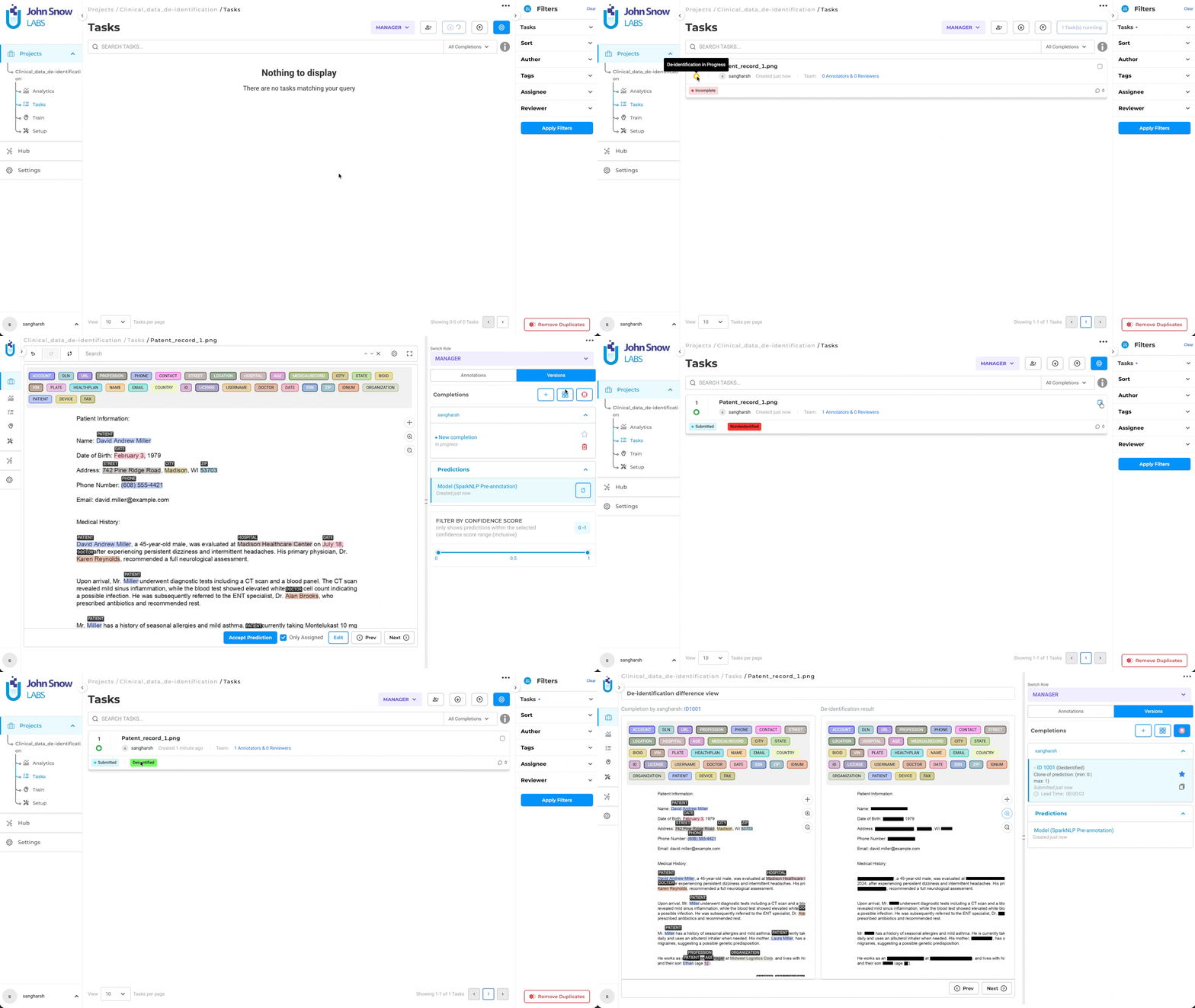
Generative AI Lab 7.7.0 introduces De-Identification for Visual NER projects, enabling secure and compliant processing of images and PDFs containing sensitive information. This release extends Visual NER to support clinical and document-centric de-identification workflows across the entire project lifecycle, from import and pre-annotation to review and export.
This enhancement allows teams to confidently process PHI/PII in visual documents while supporting regulatory and compliance requirements such as HIPAA.
What’s New
- Introduced a new Visual NER – De-Identification project type
- End-to-end de-identification support for Images and PDFs
- Integrated clinical de-identification pipeline for visual data
- Support for both NER model–based and rule-based de-identification methods
- De-identification applied consistently across:
- Task creation
- Pre-annotation
- Review and comparison
- Export-Sensitive entities are masked or replaced consistently throughout the workflow.
Technical Details
Project & Pipeline Setup
- Added a dedicated Visual NER De-Identification project type
- Enabled deployment of the visual de-identification pipeline directly in the UI
- Pipeline supports clinical NER models, custom NER models and rule-based de-identification
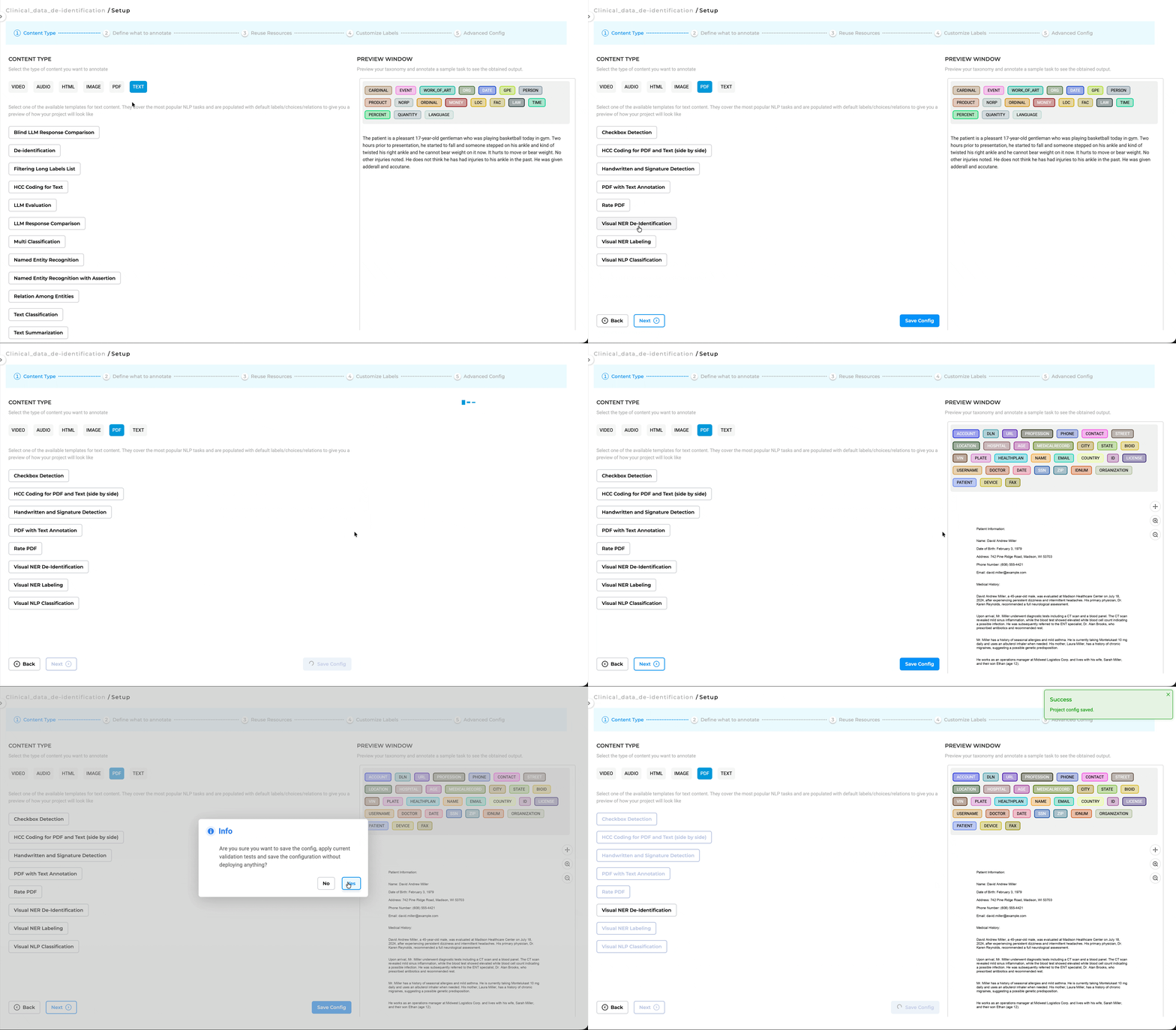 Project configuration for PDF in Visual NER De-Identification project
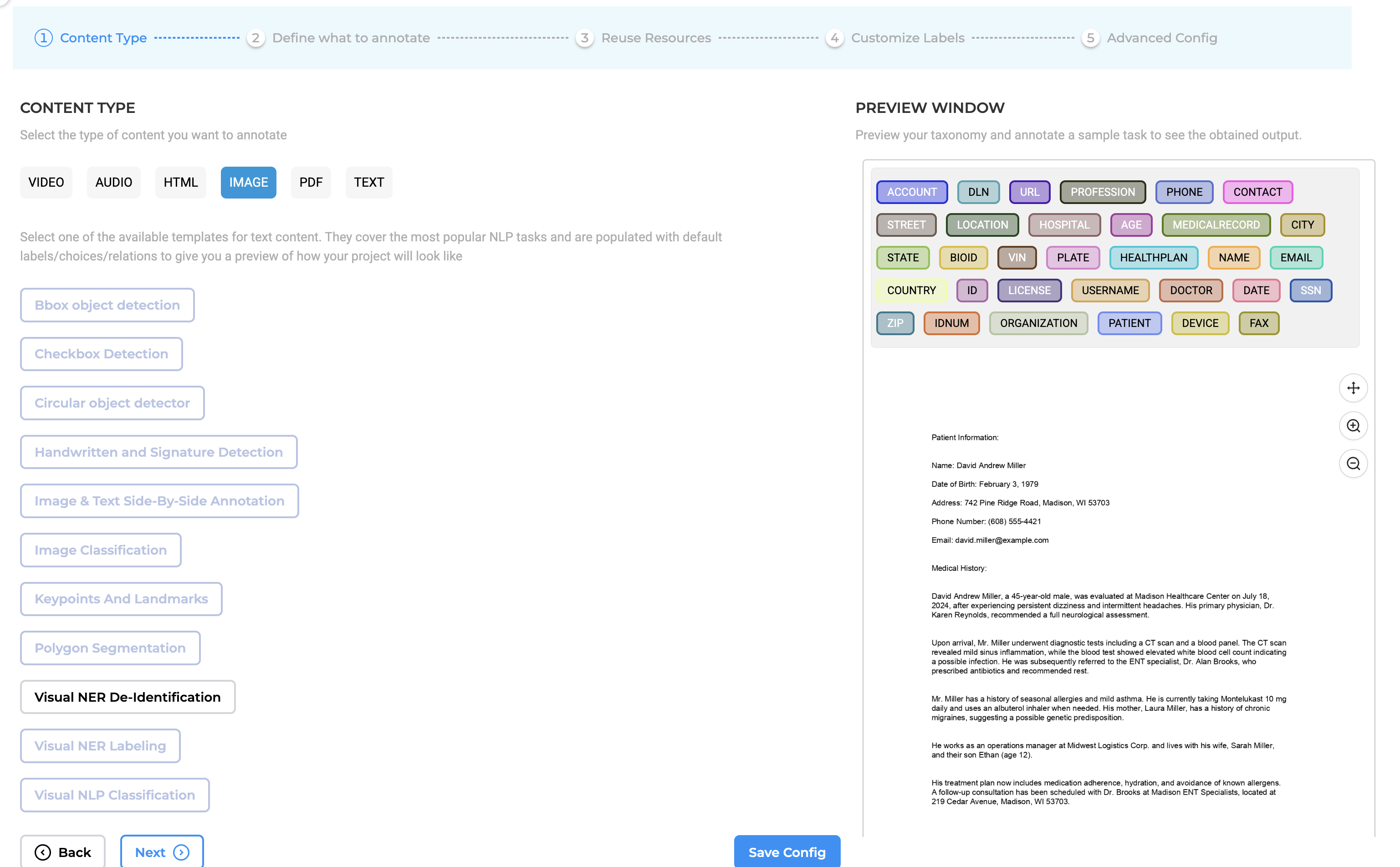 Project configuration for IMAGE in Visual NER De-Identification project
Supported Models & Rules
- Out-of-the-box support for:
- Clinical PHI detection models
- Generic NER models (names, locations, IDs)
- Rule-based detection for:
- Phone numbers
- Emails
- IDs
- Dates
- Models and rules can be combined for improved accuracy
Export Control
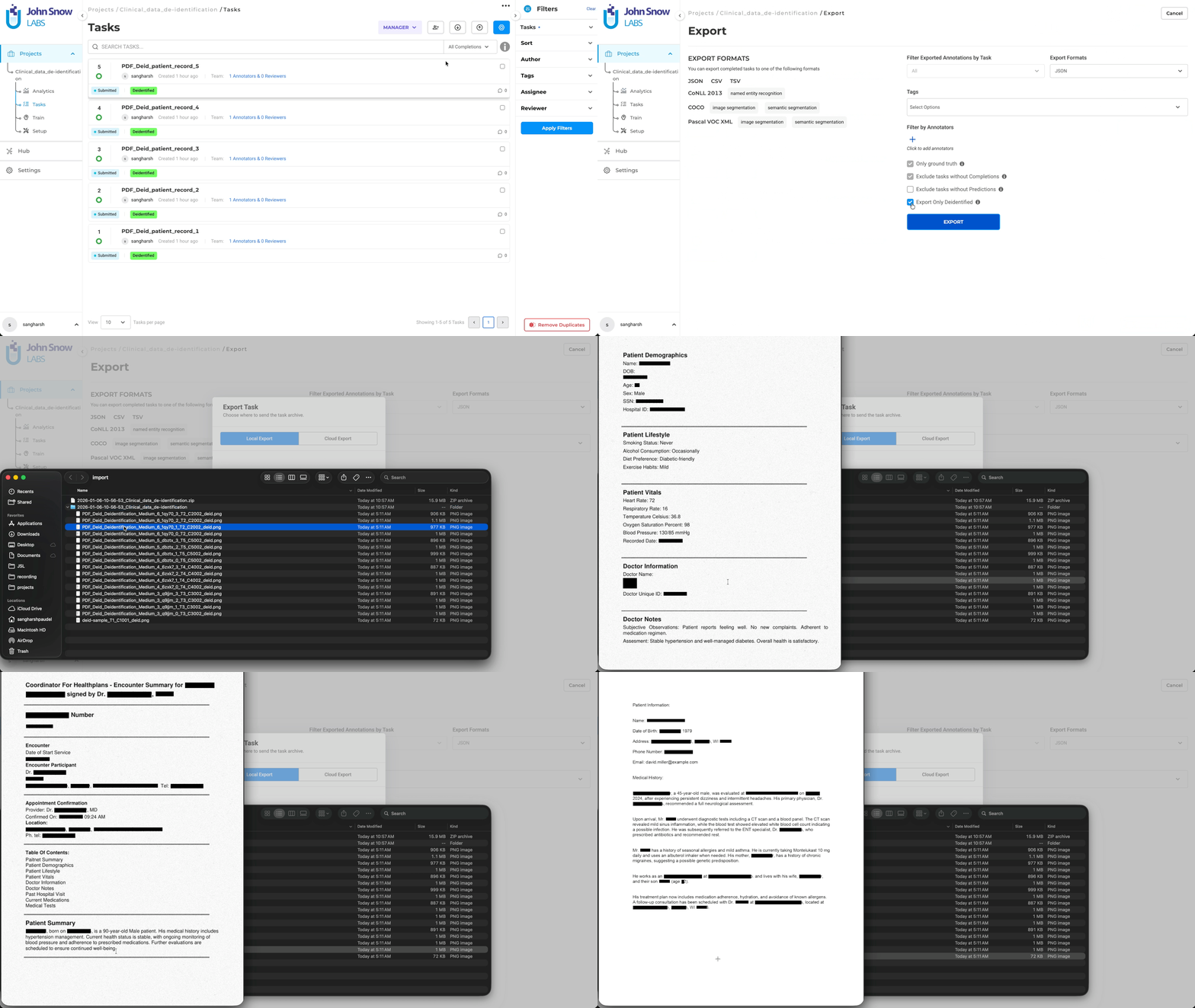
- Added an “Export Only De-Identified” option
- Exports only masked images or PDFs
- Original raw files are excluded to prevent data leakage
- Export format always matches the project type
- Image-based projects export de-identified images
- PDF-based projects export de-identified PDFs
Configuration Improvements
- Added XML flags to distinguish between image and PDF Visual NER projects
- Ensured outputs are routed to the correct storage and export handlers
- Removed de-identification options not applicable to Visual NER
UX & Review Enhancements
- Live de-identification preview
- Reviewers can verify masked images or PDFs before exporting
- Clear visual indicators for:
- De-identified content
- Export-safe outputs
Performance Details
- Default Infrastructure:
t3.2xlarge(2 vCPU, 16 GB RAM) -
Processing Time: ~20 minutes for 100 visual tasks
- Note: — Performance may vary based on PDF page count and the number of detected entities
User Benefits
- Secure handling of PHI/PII in visual documents
- Complete de-identification workflow for images and PDFs
- Safe exports containing only de-identified outputs
- Visual validation before data sharing
- Seamless integration with existing Visual NER workflows
- Predictable performance for enterprise-scale processing
Example Use Case
A healthcare compliance team uploads scanned medical reports (PDFs) and patient intake forms (images) into a Visual NER De-Identification project. Using the clinical pipeline and rule-based detection, patient names, IDs, and contact details are automatically masked. Reviewers validate the results using live preview and export only the de-identified PDFs and images for analytics, audits, and regulatory submissions.
Notes & Recommendations
- Ensure the de-identification pipeline is deployed before task creation.
- Use PDF projects for multi-page documents to preserve structure.
- Review live preview carefully for edge cases such as handwritten text or low-quality scans.
Multi-LLM Ranking for Blind Evaluation Comparison Projects
Evaluators can now rank individual responses generated for the same prompt, making it easier to express relative preference and compare model performance when more than two LLMs are involved.
Technical Details
- Built-in Ranking Capability: Ranking is enabled by default in Blind LLM Response Comparison projects and does not require any additional setup. During evaluation, each response associated with the same prompt can be assigned a rank (such as 1st, 2nd, 3rd), allowing evaluators to clearly express preference among multiple LLM outputs.
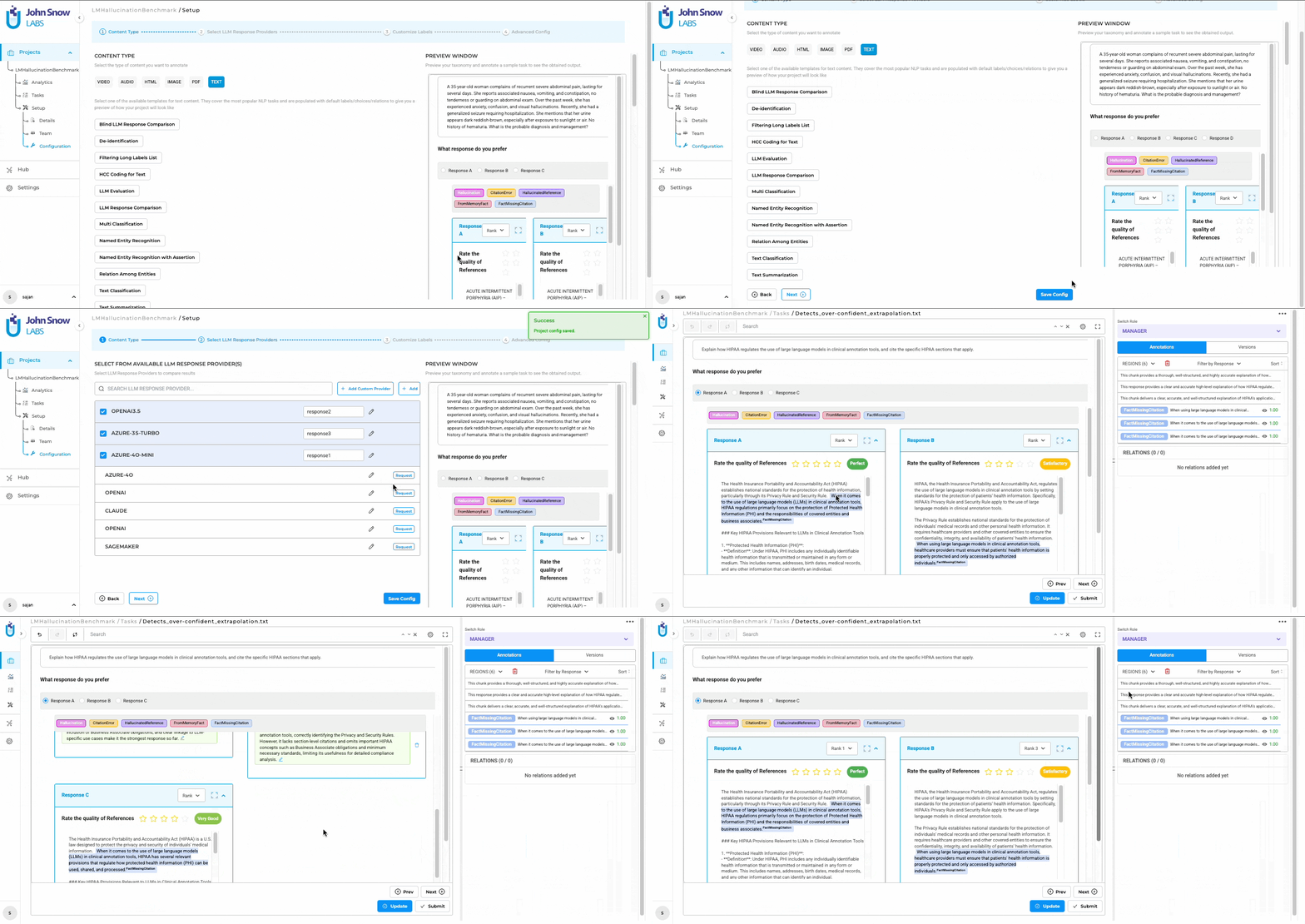
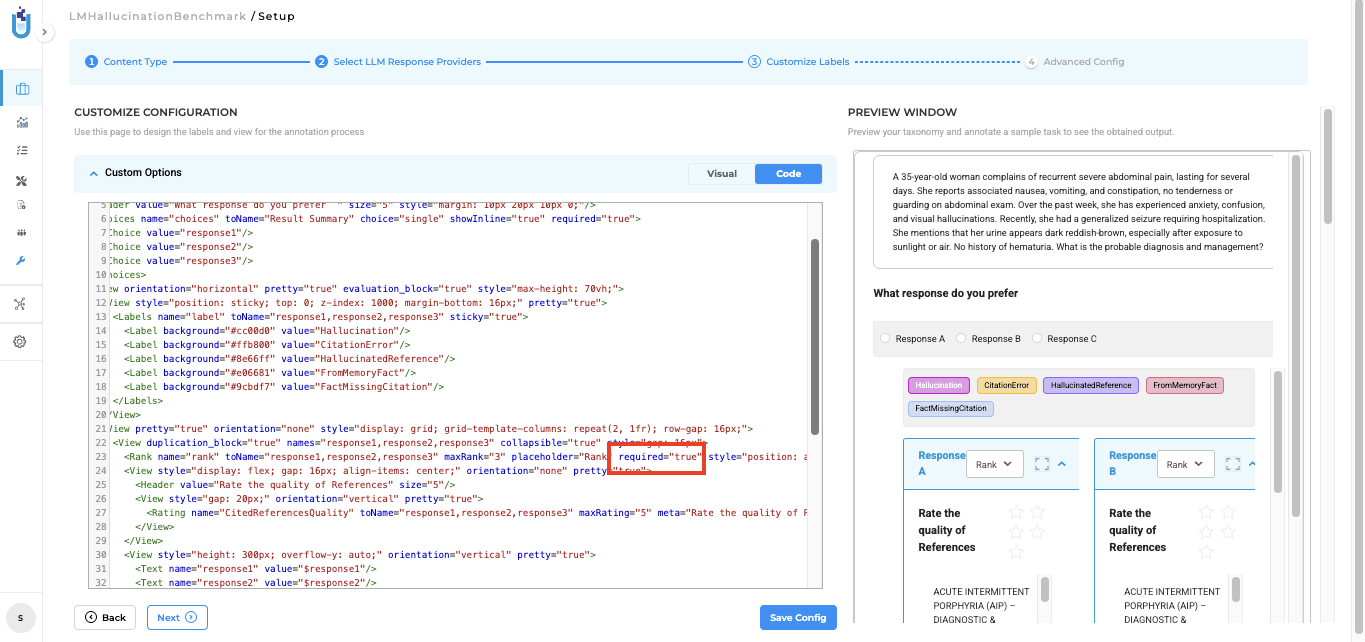
- Required by Default, Configurable by Design: Rankings are mandatory by default to ensure every response is evaluated consistently. This requirement is controlled through the project configuration using the
required="true"attribute. Project Managers can update this value tofalseif rankings should be optional for a specific workflow or evaluation style.
- Seamless Workflow Integration: The ranking feature is fully integrated into the existing Blind Evaluation flow. Evaluators simply select ranks while reviewing responses, with no changes to task navigation, submission flow, or project setup. This ensures that the the existing evaluation workflow remains unchanged.
User Benefits
- Clearer comparisons: Rankings provide a direct way to express which responses are better or worse across multiple LLMs.
- Consistent evaluations: Mandatory rankings ensure that all responses are fully assessed.
- Minimal setup: The feature works out of the box without requiring changes to project configuration.
- Scalable reviews: Supports meaningful evaluation when comparing more than two LLMs.
Example Use Case
A team evaluates responses from four different LLMs for the same medical question in a Blind LLM Response Comparison project. During review, the evaluator ranks the responses from best to worst based on accuracy and clarity. These rankings are then used to identify which models consistently perform better across prompts, without revealing model identities during annotation.
Improvements
Improved Default Annotation Experience with Sticky Label Layout
What’s Improved
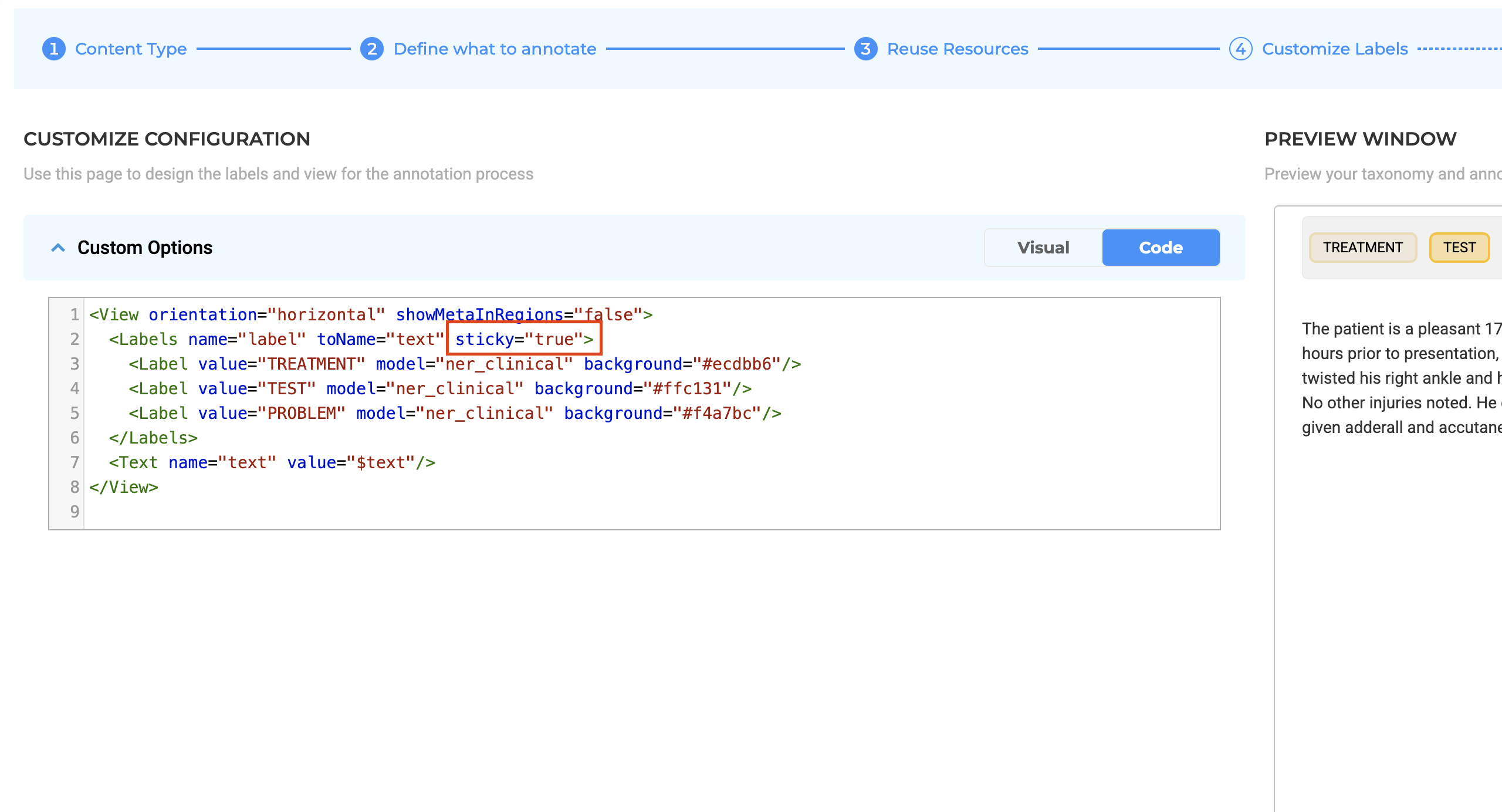
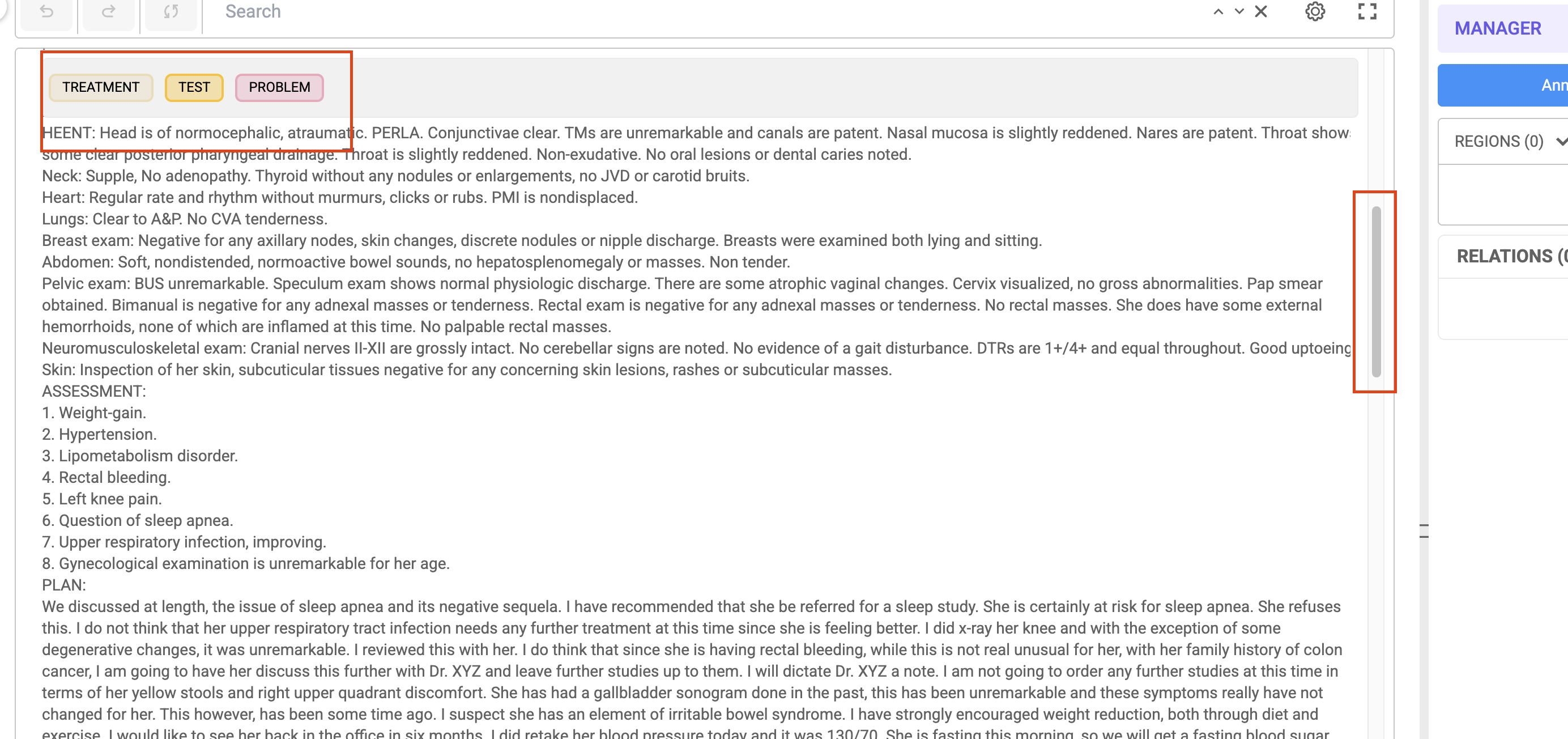
The Horizontal Sticky Layout is now enabled by default for newly created annotation projects. This ensures that labels and classification options remain visible while annotating large or scroll-heavy tasks.
Technical Details
- The default Task View for new projects is set to Horizontal – Sticky Layout
- The change is applied at project creation time
- Applicable to NER projects and all annotation projects that use labels
- Existing projects retain their previously configured layout settings
User Benefits
- Eliminates the need to repeatedly scroll to access labels
- Improves annotation speed and focus for large tasks
- Provides a better out-of-the-box experience without requiring manual configuration
Example Use Case
A user annotating a long clinical document or large text file can scroll through the content while the label panel remains fixed and accessible, allowing continuous and efficient labeling without interruptions.
Enhance Completion Workflow with Scrollable User Completions
What’s Improved
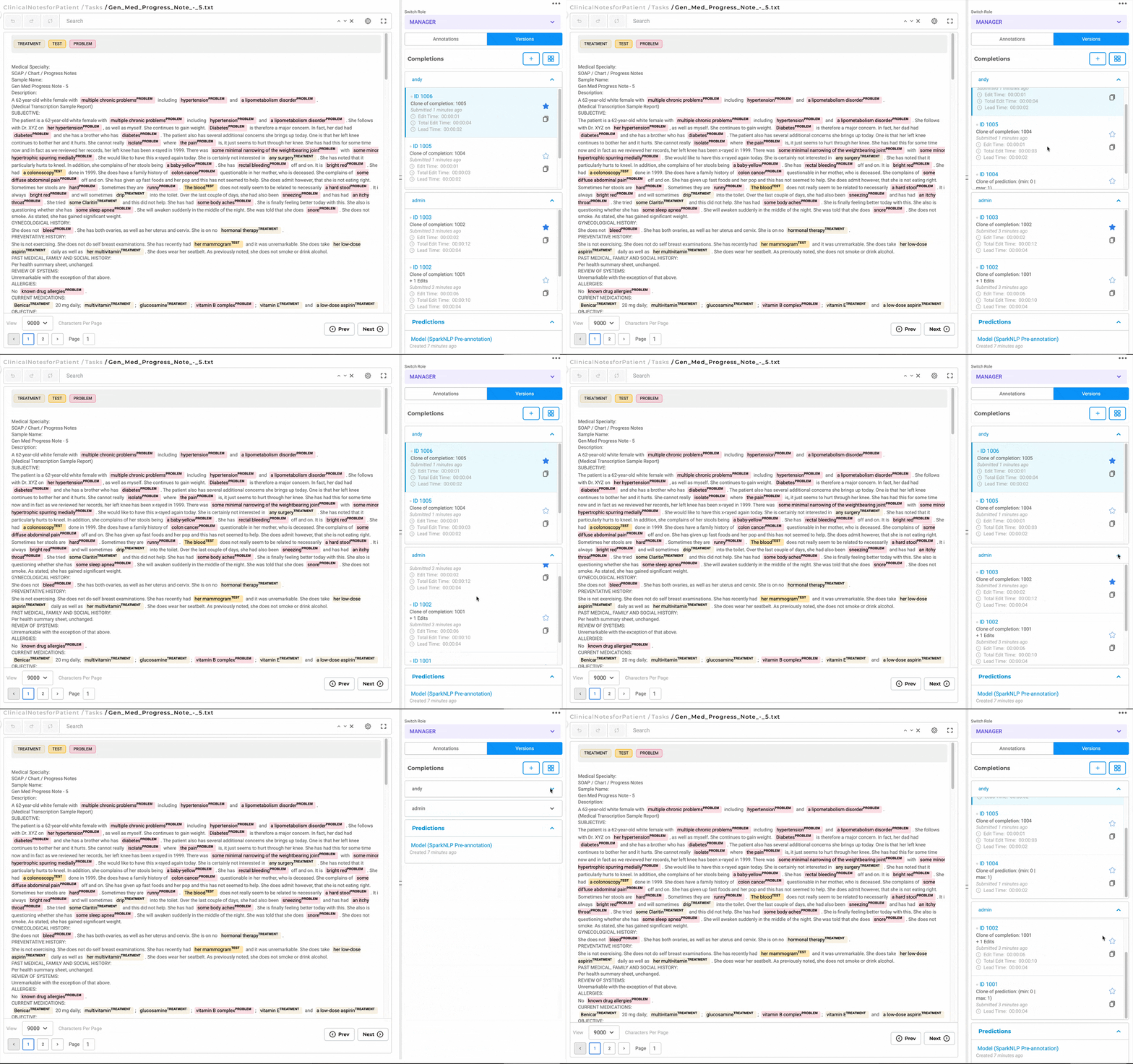
The completion list in the Version tab of the annotation widget now supports scrolling within each annotator’s completion section. This allows multiple completions from the same user to be accessed without expanding or scrolling the entire page.
Technical Details
- A vertical scrollbar is added inside each annotator’s accordion in the Version tab
- Due to limited vertical space, the UI displays up to 3 completions per annotator by default
- If an annotator has more than 3 submitted completions, the remaining completions can be accessed via in-panel scrolling
- This change applies to the right-side annotation widget where the Version tab is displayed
User Benefits
- Improves readability and navigation in areas with limited vertical space
- Allows quick comparison of completions across multiple annotators
- Reduces excessive page scrolling and keeps the Version tab compact and usable
Example Use Case
In a project where multiple annotators submit several completions for the same task, the reviewer can view up to three recent completions per annotator at a glance and scroll within a specific annotator’s section to review additional submissions, without losing visibility of other annotators’ work.
Import Actions and File Handling
- [ALAB-6853] Disable New File Import Actions During Ongoing Import
- [ALAB-6861] Add pagination for list of projects for exceptions in local Import and export
Disable New File Import Actions During Ongoing Import
What’s Improved:
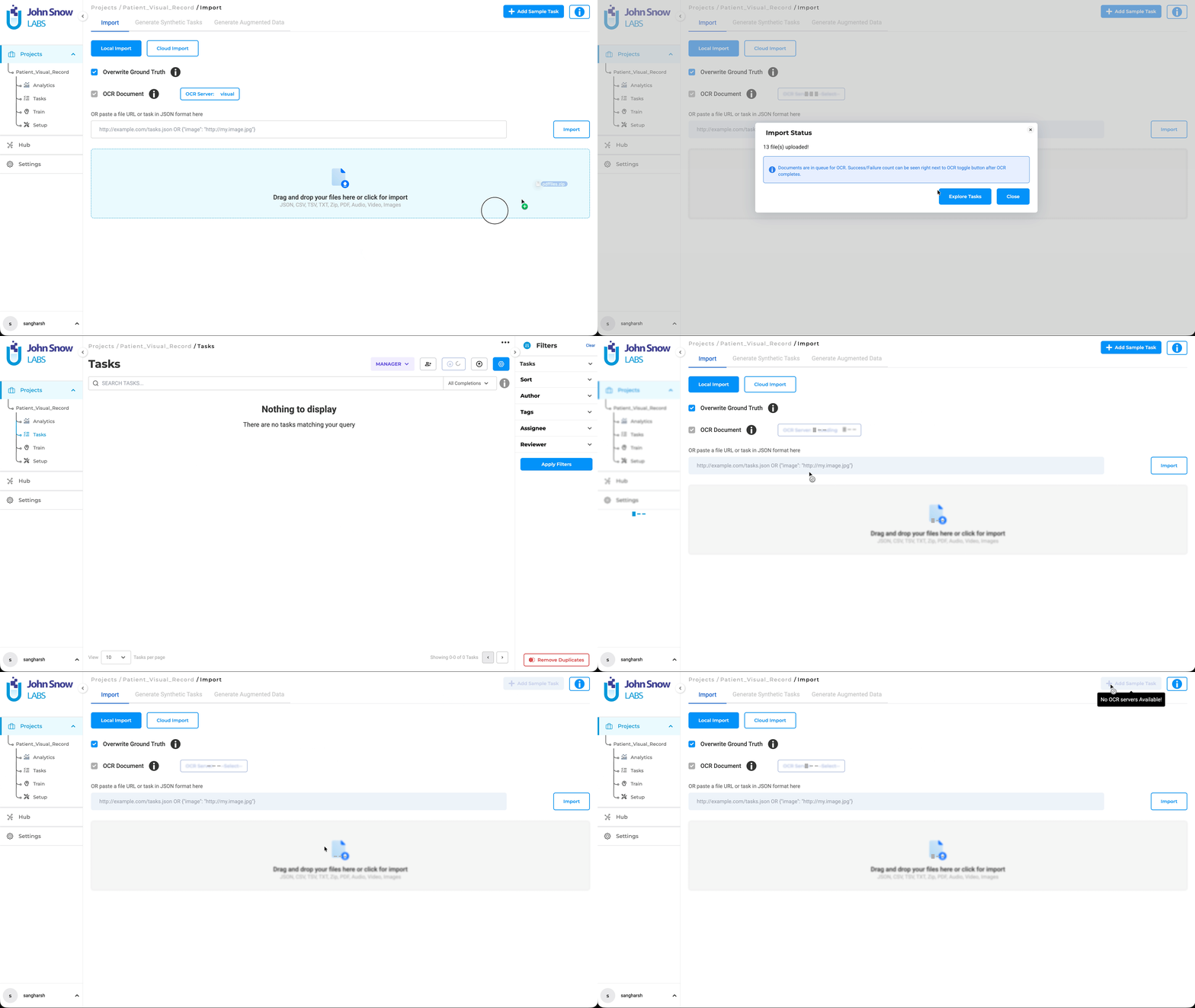
File import behavior has been updated to prevent users from starting a new import while another import is already in progress. Previously, users could trigger multiple imports simultaneously or reopen the file selection dialog, which could lead to confusion or inconsistent states.
With this improvement, the system now ensures that only one import process runs at a time.
Technical Details:
- File import actions remain disabled while an import is in progress.
- Users cannot open the file selection dialog until the current import completes.
- Import buttons are automatically re-enabled once the ongoing import finishes successfully.
- The restriction is handled entirely at the UI level to ensure a smooth and predictable experience.
User Benefits:
- Prevents accidental multiple imports during long-running upload processes.
- Improves stability by avoiding overlapping import operations.
- Clear user feedback by visually disabling import actions until completion.
- Simpler workflow with reduced chances of user error.
Example Use Case: A user starts importing a large dataset into a project. While the import is processing, the file upload and import options remain disabled, preventing the user from starting another import until the current one completes successfully.
Pagination for Project List in Local Import and Export
What’s Improved:
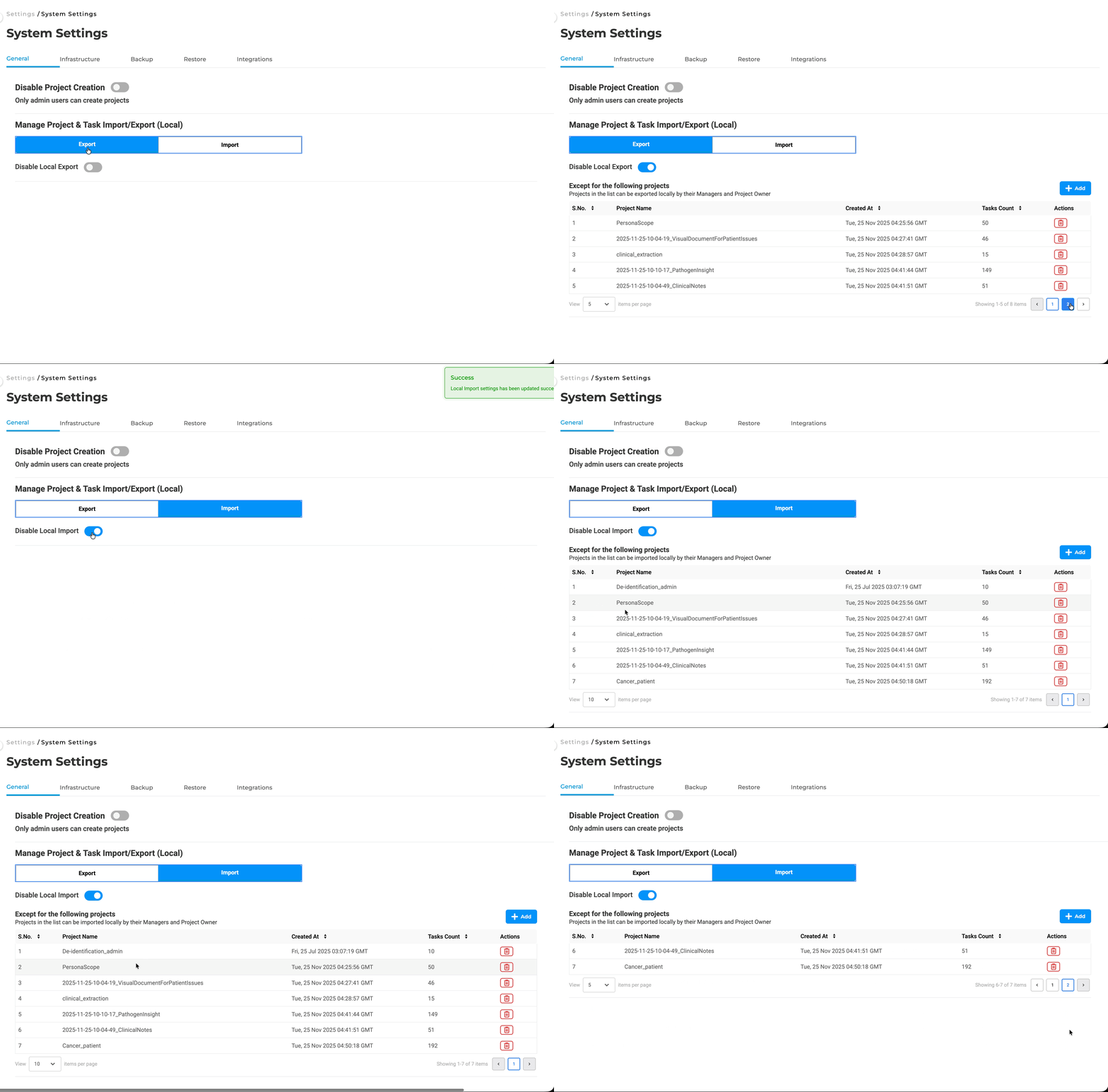
To improve stability and performance during local Import and Export operations, pagination has been introduced for the project selection list. This enhancement prevents issues caused by loading a large number of projects simultaneously and ensures a smoother workflow.
Previously, all projects were loaded in a single view, which could lead to UI exceptions and performance degradation when handling large datasets.
Technical Details
- Pagination has been implemented for the project list displayed in local Import and local Export workflows.
- Projects are now loaded in smaller, manageable batches instead of all at once.
- This change prevents UI exceptions and reduces memory and rendering overhead.
- The behavior is applied consistently across both Import and Export flows.
User Benefits
- Improved stability: Prevents crashes and UI exceptions during Import/Export.
- Better performance: Faster load times and smoother navigation.
- Scalability: Reliable handling of environments with a large number of projects.
- Enhanced user experience: Cleaner, more responsive project selection interface.
Example Use Case
An admin managing hundreds of projects initiates a local export. Instead of loading all projects at once and encountering performance issues, the project list now loads page by page, allowing smooth selection and a successful export process.
Blind Evaluation Rating Experience Enhancements
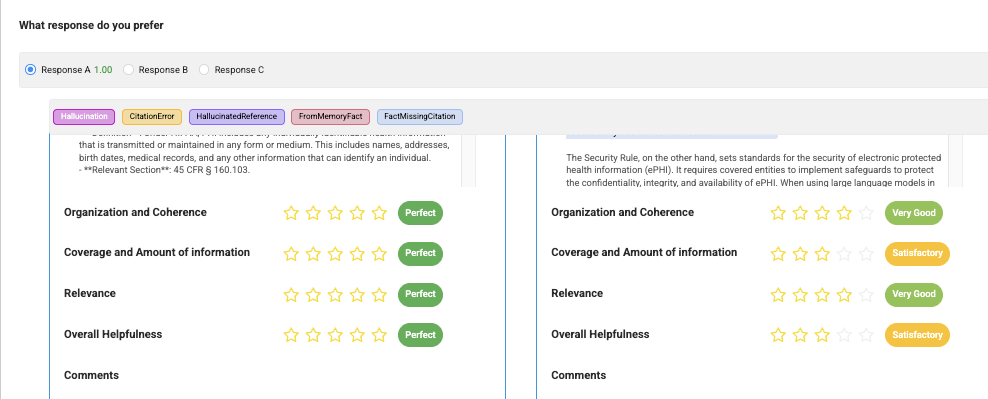
This release significantly improves the rating experience in Blind Evaluation Comparison projects by introducing a more compact, intuitive star-based ratings widget, improving usability on low-resolution and zoomed-in screens, and enforcing rating immutability after submission to prevent user confusion.
Together, these updates deliver a clearer, more consistent, and more reliable evaluation workflow while preserving the integrity of submitted results.
Technical Details
- Star-Based Ratings Widget (Default)
- Replaced the previous choice-based rating input with a compact star-based selector
- Enabled by default in Blind Evaluation Comparison projects
- Each star rating includes a descriptive tooltip, allowing evaluators to understand the meaning of each score without cluttering the UI
- Tooltip styling has been refined, including a transparent background for improved readability and visual consistency
- Responsive Single-Line Rating Layout
- Ratings are now rendered on a single line in standard and moderately constrained screen resolutions
- Reduced excessive padding and visual weight of rating elements for a cleaner, more compact layout
- In very low-resolution or heavily zoomed-in states, multiline wrapping may still occur and is expected to maintain usability
- Immutable Ratings After Submission
- Once a Blind Evaluation task is submitted, ratings are locked and cannot be modified
- Prevents scenarios where users could interact with ratings that could not be saved
- Ensures consistency between visible UI state and persisted evaluation data
User Benefits
- Clearer and faster evaluations through an intuitive, compact star-based rating interface
- Reduced visual clutter and improved readability, especially in constrained screen environments
- Improved confidence and trust in the evaluation process by preventing misleading post-submission edits
- Consistent rating semantics via tooltip-based descriptions without overloading the UI
Example Use Case
An evaluator reviewing responses from multiple LLMs in a Blind Evaluation Comparison project rates each response using the new star-based widget. Hovering over the stars reveals concise descriptions that clarify the meaning of each score. On a laptop with limited screen resolution, all ratings remain aligned on a single line.
Analytics Dashboard Updates
What’s New
Version 7.7.0 introduces a set of visual and usability improvements to the Analytics Dashboard, making charts easier to read, more interactive, and more informative. These updates apply across analytics views and are not limited to a single project type.
Technical Details
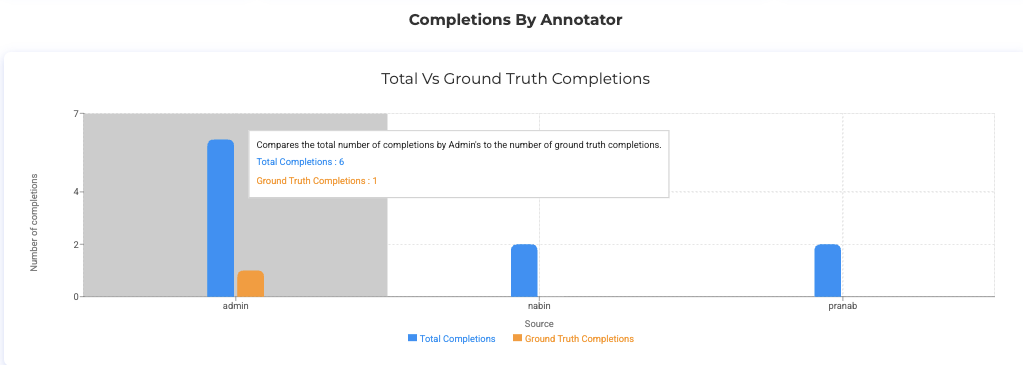
- Clearer Chart Context and Labels Analytics charts now include descriptive titles and subtitles, along with clearly labeled X-axis and Y-axis values. Tooltips have been added to the relevant charts throughout the dashboard to display additional details on hover, reducing ambiguity and improving interpretability.
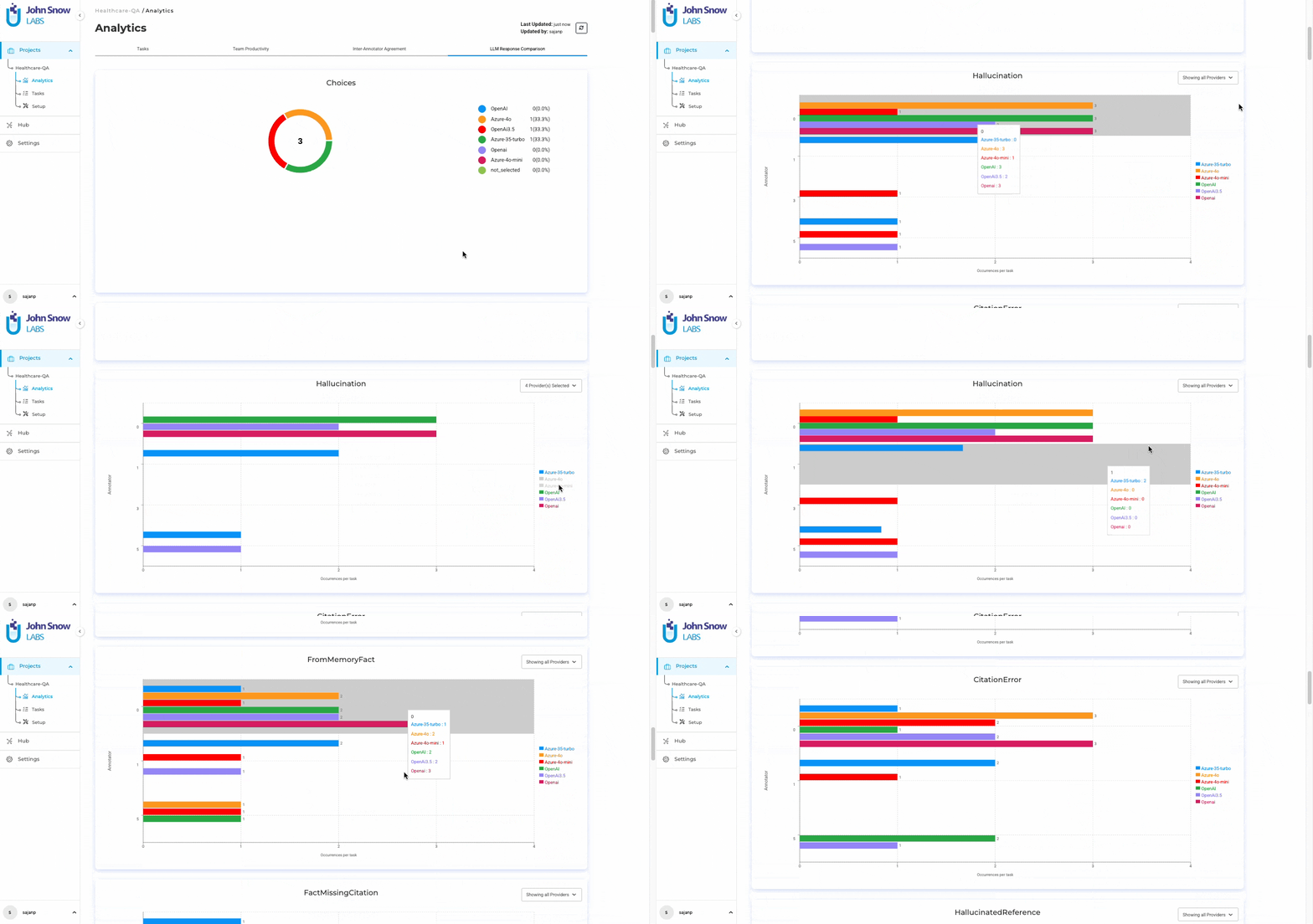
- Improved Chart Types for Comparative Analysis In the LLM Response Comparison section, vertical bar charts have been replaced with horizontal grouped bar charts. This layout improves readability when comparing multiple models and labels. Bars representing zero values are now hidden to reduce visual noise and keep the focus on meaningful data.
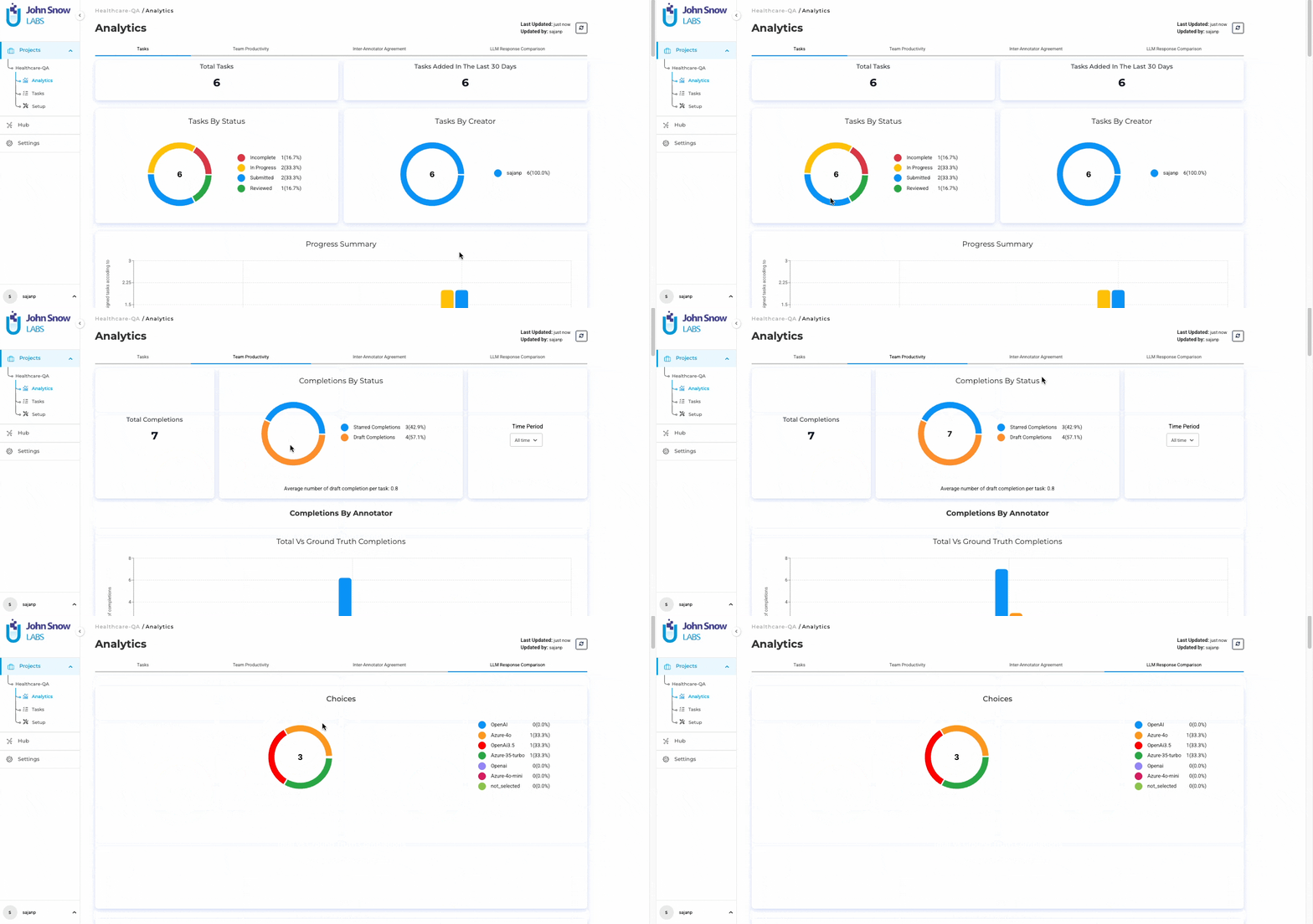
- Enhanced Interactive Visuals Donut charts across the Analytics page have been replaced with interactive pie charts. These charts respond to hover actions by highlighting individual segments and displaying relevant values, enabling more intuitive exploration of proportions and distributions.
User Benefits
- Clearer understanding of analytics through improved titles, labels, and tooltips.
- Better visual comparison across datasets, labels, and models.
- Reduced clutter in charts by hiding zero-value data points.
- More engaging analysis experience with interactive and responsive visuals.
Example Use Case
A project manager opens the Analytics Dashboard to assess annotation quality and distribution across tasks. The updated charts immediately provide clearer context through improved labels and subtitles. Horizontal grouped bar charts make it easier to compare categories at a glance, while interactive pie charts allow the reviewer to hover over segments to see exact values. These improvements help the reviewer quickly identify patterns and insights, regardless of the underlying project type.
Bug Fixes
Model & Training Issues
-
Unable to Download Uploaded Models
Fixed an issue that prevented users from downloading previously uploaded models. Users can now successfully download uploaded models without encountering any errors.
-
Transfer Learning Failure for
ner_biomarker_langtestResolved an issue where transfer learning failed when using the
ner_biomarker_langtestmodel with the Healthcare license and the Include Base Model Labels option enabled. Training and pre-annotation are now complete successfully in the latest version without errors. -
Unable to Deploy
distilbert_ner_distilbert_base_cased_finetuned_conll03_englishin PlaygroundFixed an issue that prevented the deployment of the distilbert_ner_distilbert_base_cased_finetuned_conll03_english model in the Playground. The model can now be deployed and used successfully without any issues.
UI / UX Fixes
-
Models Hub Expands with Blank Area When Side Panel Is Minimized
Resolved an issue where the Models Hub expanded with a blank area when accessed from a minimized side panel. This behavior has been fixed for both the Models Hub and Settings views.
-
Support for Longer Prompt Names with Truncation and Hover Preview
Improved prompt name handling to support longer names. Prompt names can now be saved with a maximum length of 100 characters. Long names are truncated with an ellipsis (
…) where space is limited, and the full name is accessible via hover tooltip, ensuring no data loss. -
Selecting Tasks Unbolds “Tags” Dropdown Text
Fixed an issue where selecting tasks caused the “Tags” dropdown label to lose its bold styling. The label now remains consistently bold regardless of task selection state.
-
Full-Screen View Overlap in Individual Sections
Resolved layout issues where the full-screen view overlapped with left-side sections and action buttons were misaligned or non-functional. The full-screen view is now clean, and the Save, Next, and Previous buttons are properly aligned and function as expected.
-
Error When Editing or Cloning Predictions with Confidence Scores Enabled
Fixed an issue where users were redirected to a “
Something Went Wrong” page when editing or cloning predictions in Visual NER projects with Show Confidence Score in Regions enabled. Predictions can now be edited or cloned successfully without any errors.
Project & Task Import/Export
-
Zipped Audio and Video Files Not Imported
Fixed an issue where ZIP files containing audio and video tasks were processed, but showed 0 tasks imported in the logs. Zipped audio and video files now import correctly, and all valid tasks within the ZIP are successfully processed.
-
First Attempt to Import Zipped Tasks from S3 with Session Token Fails
Resolved an issue where importing zipped tasks from S3 using a session token failed on the first attempt but succeeded on subsequent retries. The import now works reliably on the first attempt when using a session token.
-
Unable to Import Tasks Exported with “Exclude Tasks Without Completions” in Visual NER Projects
Fixed an issue where tasks exported using the Exclude tasks without completions option could not be re-imported into Visual NER projects. These exported tasks can now be imported successfully without errors.
-
Drag-and-Drop Import Issues Causing Missing or Duplicate Imports
Addressed issues in the drag-and-drop import workflow where files were not imported via the confirmation pop-up and, in some cases, were imported multiple times after a single drop action. The drag-and-drop import now functions correctly, importing files only once and confirming successful uploads via the pop-up.
-
Unable to Re-Import Tasks in Blind Evaluation Projects
Fixed an issue where re-importing previously exported tasks in Blind Evaluation projects resulted in an internal server error. Users can now delete and re-import tasks without any issues.
Analytics / Dashboard
-
Incomplete Analytics Chart Data on Initial Load for Large Projects
Resolved an issue where Analytics charts for large projects loaded partially on the first view during the backend processing. The Analytics page now displays a banner stating “
This page will be updated in a few minutes. Please wait to see the latest data…” while data is loading, and automatically refreshes to display complete charts once processing is finished. -
Previous Project’s Analytics Briefly Displayed When Switching Projects
Fixed an issue where analytics data from a previously viewed project briefly appeared when switching between projects. Analytics now load cleanly for the selected project without showing outdated or incorrect data.
Annotation & Labeling
-
Incorrect Display of Overlapping Annotations in HTML Projects
Fixed an issue where labeled text was displayed incorrectly when annotations overlapped in HTML projects. Overlapping annotations now render with the correct label text and color, ensuring accurate visual representation.
-
Region Annotated Without Label When Selected Before Label in B-Box Projects
Resolved an issue where creating a bounding box by selecting the region before choosing a label resulted in unlabeled regions and annotation errors. Regions are now automatically associated with the selected label at the time of creation, providing consistent behavior similar to Visual NER projects.
-
Unable to Modify Overlapping Labels in NER Project Tasks
Fixed an issue that required users to delete overlapping annotations before modifying them. Users can now edit overlapping labels directly in NER project tasks without deleting existing annotations.
-
Annotations Reappear After Re-Import in Blind Evaluation Projects
Addressed an issue where previously deleted annotations reappeared when a task was deleted and re-imported in Blind Evaluation projects. Re-imported tasks now correctly appear as fresh, unannotated tasks.
-
Vertical Scrolling Not Working in De-Identification Compare View
Fixed an issue that prevented vertical scrolling in the De-Identification compare task view. Users can now scroll through the full content, and the same fix applies to NER project types.
System Fixes
-
User Redirected to Project Screen After Session Timeout and Refresh
Resolved an issue where refreshing the page after a session timeout redirected users to the Project screen, causing loss of context. After re-authentication, users are now returned to the same screen they were previously working on.
-
Duplicate Default Names for Custom Service Providers in LLM Comparison Projects
Fixed an issue where default names for custom service providers were duplicated when adding multiple providers. Default names now increment correctly, ensuring each provider has a unique name.
-
Internal Server Error When Switching Project Type After Importing Image B-Box Tasks
Resolved an issue where switching project types after importing Image B-Box tasks caused an internal server error due to processing mismatches. Users can now switch to compatible image-based project types and open previously imported tasks without errors.
-
Training Banner Not Showing Training Stages Consistently
Fixed an issue where the training banner intermittently failed to display training stages after a training session started. The training information bar is now always visible and consistently shows the training stages.
-
Project Permissions Removed After Export in Visual NER De-Identification Projects
Resolved an issue where exporting tasks removed user permissions in Visual NER De-Identification projects. Project permissions are now preserved after export, and users retain proper access rights.
Versions
- 8.3.0
- 8.2.8
- 8.2.6
- 8.2.5
- 8.2.1
- 8.2.0
- 8.1.3
- 8.1.2
- 8.1.1
- 8.1.0
- 8.0.1
- 8.0.0
- 7.8.2
- 7.8.1
- 7.8
- 7.7
- 7.6.0
- 7.5.1
- 7.5.0
- 7.4.0
- 7.3.1
- 7.3.0
- 7.2.2
- 7.2.1
- 7.2.0
- 7.1.0
- 7.0.1
- 7.0.0
- 6.11.3
- 6.11.2
- 6.11.1
- 6.11.0
- 6.10.1
- 6.10.0
- 6.9.1
- 6.9.0
- 6.8.1
- 6.8.0
- 6.7.2
- 6.7.0
- 6.6.0
- 6.5.1
- 6.5.0
- 6.4.1
- 6.4.0
- 6.3.2
- 6.3.0
- 6.2.1
- 6.2.0
- 6.1.2
- 6.1.1
- 6.1.0
- 6.0.2
- 6.0.0
- 5.9.3
- 5.9.2
- 5.9.1
- 5.9.0
- 5.8.1
- 5.8.0
- 5.7.1
- 5.7.0
- 5.6.2
- 5.6.1
- 5.6.0
- 5.5.3
- 5.5.2
- 5.5.1
- 5.5.0
- 5.4.1
- 5.3.2
- 5.2.3
- 5.2.2
- 5.1.1
- 5.1.0