On Premise Deployment of John Snow Labs Medical LLMs
Deploying Medical LLMs within your infrastructure ensures complete control over your data and compliance with local security policies. This guide walks you through the steps to deploy a Medical LLM using Docker on your server.
Prerequisites: Before you begin, make sure the following are in place:
- John Snow Labs License: You need a valid John Snow Labs license file (license.json). Contact your account manager if you don’t have one.
- Docker Installed: Ensure Docker is installed and running on your machine. You can verify by running:
docker --version
Note: For GPU acceleration, your system must have compatible NVIDIA GPUs with the NVIDIA Container Toolkit installed.
John Snow Labs provides a ready-to-use Docker image for deploying the Medical LLMs on your own infrastructure. The image is available on Docker Hub and can be pulled using the following command:
docker pull johnsnowlabs/jsl-llms:latest
Use one of the commands below to start the container. Replace <model> with the name of the LLM model you want to deploy (e.g. Medical-LLM-Small, Medical-LLM-Medium — see the complete list in the table below).
You can provide your license in two ways:
Option 1 — Environment Variable (recommended for quick setup):
docker run -d \
--gpus all \
--env "SPARK_NLP_LICENSE=your_license_key" \
-p 8080:8080 \
--ipc=host \
johnsnowlabs/jsl-llms \
--model Medical-LLM-Small \
--port 8080
Option 2 — License File (recommended for more secure license management):
docker run -d \
--gpus all \
-v "$(pwd)/license.json:/app/license.json" \
-p 8080:8080 \
--ipc=host \
johnsnowlabs/jsl-llms \
--model Medical-LLM-Small \
--port 8080
The following models are currently available for on-premise deployments:
| Model Name | Recommended GPU Memory | Max Sequence Length | Max KV-Cache | Tensor Parallel Sizes | Available Versions |
|---|---|---|---|---|---|
| Medical-LLM-Medium | ~67 GB | 262K | 16 GB | 2, 4, 8 | v1, v2, v3, v4, v5 |
| Medical-LLM-Small | ~25 GB | 262K | 8 GB | 1, 2, 4, 8 | v1, v2, v3 |
| Vision-OCR-LLM | ~6 GB | 32K | 4 GB | 1, 2, 4 | v1, v2 |
| Vision-OCR-Structured-LLM | ~32 GB | 128K | 17 GB | 1, 2, 4 | v1, v2 |
Important Notes
Memory Calculations: All memory calculations are based on half-precision (fp16/bf16) weights. Recommended GPU Memory considers the model size and the maximum key-value cache at the model’s maximum sequence length. These calculations follow the guidelines from DJL’s LMI Deployment Guide.
All specifications shown are based on the latest version of each model.
Model Code Requirements: Both
Vision-OCR-LLMandVision-OCR-Structured-LLMmust be run withtrust_remote_code=Truebecause their model implementations include custom code.
Model Versions
Each model is versioned. By default, omitting --model-version loads the latest (most recent) version. Use the flag to pin a specific older version. Available versions for each model are listed in the table above.
docker run -d \
--gpus all \
--env "SPARK_NLP_LICENSE=your_license_key" \
-p 8080:8080 \
--ipc=host \
johnsnowlabs/jsl-llms \
--model Medical-LLM-Small \
--model-version v1 \
--port 8080
🪄 Memory Optimization Tips
- Use smaller sequence lengths to reduce KV-cache memory
- Leverage tensor parallelism for large models
- Select an appropriate model based on your GPU resources
Model Interactions
Once deployed, the container exposes a RESTful API for model interactions.
Chat Completions
Use this endpoint for multi-turn conversational interactions (e.g., clinical assistants).
- Endpoint:
/v1/chat/completions - Method: POST
- Example Request:
payload = {
    "model": "Medical-LLM-Small",
    "messages": [
        {"role": "system", "content": "You are a professional medical assistant"},
        {"role": "user", "content": "Explain symptoms of chronic fatigue syndrome"}
    ],
    "temperature": 0.7,
    "max_tokens": 1024
}
Text Completions
Use this endpoint for single-turn prompts or generating long-form medical text.
- Endpoint:
/v1/completions - Method: POST
- Example Request:
payload = {
  "model": "Medical-LLM-Small",
  "prompt": "Provide a detailed explanation of rheumatoid arthritis treatment",
  "temperature": 0.7,
  "max_tokens": 4096
}
How Licensing Works for On-Premise Deployments
John Snow Labs Medical LLMs use a Universal (UV) license with a credit-based system. Understanding how credits are consumed and released helps you plan your deployments effectively.
What is a credit? A credit is simply a running slot - a reservation that says “one container is currently active on your license.” Think of it like a key in a key cabinet. Your UV license comes with a fixed number of keys. Every time you start a container, you take a key out. Every time you stop one, you put the key back. The keys aren’t tied to any particular door (machine or model or application) - they just control how many containers can be running at the same time.
How Credits Are Consumed
Each running container counts as one credit. All Medical LLMs - regardless of size - consume exactly one credit per running container.
A credit is drawn when the container successfully checks in with the John Snow Labs license server at startup. Here is the sequence:
- Container starts
- Container checks in with the John Snow Labs license server -> one credit is drawn from your license
- Model is streamed directly from John Snow Labs’ secure servers into GPU memory
- Model begins serving requests
If the license check-in fails (e.g. invalid license or no credits available), no credit is consumed and the container will not start.
Deploying Multiple Models
You can deploy multiple Medical LLMs on the same server, as long as the server has sufficient GPU memory and cores. Each model requires its own container, and each container consumes one credit.
Example: Deploying
Medical-LLM-SmallandMedical-LLM-14Bon the same server requires two containers and consumes two credits.
Releasing a Credit
To release a credit back to your license pool, stop the container:
docker stop <container_name>
Once the container is stopped, the credit is released back to your license pool within seconds.
If a container crashes unexpectedly without a docker stop, the credit is also automatically released within a few seconds — no manual action is needed and credits will never remain permanently stuck.
License Availability
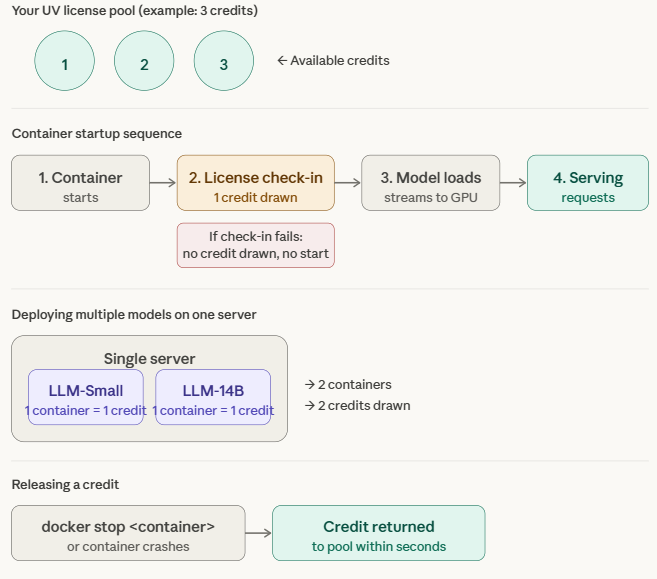
Your UV license is not locked to a specific machine or model or application. It remains available across all your deployments as long as the license has enough available (not in use) credits. If all credits are in use, the license will be “locked” (unavailable) until you stop one or more running containers to free up credits of that specific license.
| Action | Effect on Credits |
|---|---|
| Container successfully checks in with license server | -1 credit |
docker stop <container_name> |
+1 credit released within seconds |
| Container crashes unexpectedly | +1 credit auto-released within seconds |
| License check-in fails (invalid license or no credits available) | No change |